Mastering LinkedIn outreach campaigns with STACKED
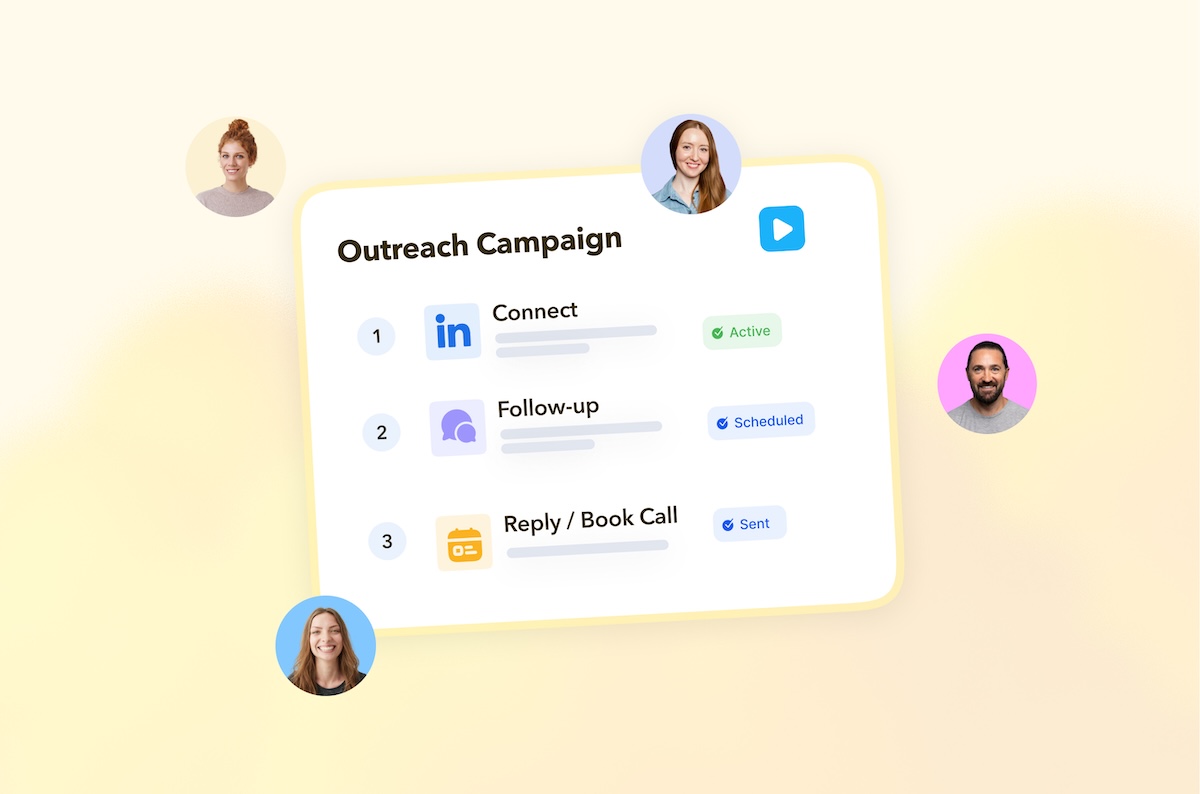
LinkedIn is a powerful place to build relationships, find prospects, and grow your network. But if you're doing all of your outreach manually, keeping track of profile visits, connection requests, follow-ups, and responses can quickly become a full-time job.
That's where automated LinkedIn outreach campaigns come in.
With STACKED, powered by Dux-Soup, you can build multi-step LinkedIn drip campaigns that combine different actions, personalize your messages, and keep your prospects moving through a carefully planned sequence, all without having to manage every action manually.
In this guide, we'll walk through how STACKED campaigns work, how to build your first campaign, how to enroll prospects, and how to monitor what happens next. You can also watch the webinar to see live demos in action.
What is a STACKED campaign?
A campaign is a sequence of planned LinkedIn actions that STACKED carries out for a selected group of prospects.
Instead of sending one message and hoping for a response, you can create a multi-touch journey. For example:
- Visit a prospect's profile
- Wait a couple of days
- Send a connection request
- Wait for the connection to be accepted
- Send a personalized follow-up
- Like a post
- Send another follow-up
This lets you build a more structured approach to LinkedIn outreach rather than relying on one-off messages.
You can create campaigns for different audiences, events, offers, or objectives, and then enroll the right prospects into each one.
And because campaigns can run over days, weeks, or longer, you can build a consistent outreach process without having to remember every individual action.
Why use campaigns for LinkedIn outreach?
The biggest advantage of campaigns is consistency.
It's easy to start a LinkedIn outreach campaign with good intentions, only to find that you forget to follow up, stop prospecting for a few days, or end up sending the same message manually over and over again.
STACKED takes care of those repetitive actions while you focus on the conversations that actually need your attention - when prospects actually become interested.
Scale your outreach
Campaigns allow you to work with large prospect lists while still building personalized sequences.
You can enroll prospects in bulk and let STACKED work through the campaign steps for you.
Build multi-touch sequences
Not every prospect will respond to the first thing you do.
A drip campaign lets you combine different actions and create a longer sequence that could include profile visits, follows, connection requests, messages, post likes, and more.
Personalize your messaging
STACKED supports personalization variables such as first name, job title, and industry.
You can also use AI-powered messaging with integrations including ChatGPT, Claude, and Gemini to add another layer of personalization to your campaigns.
Keep your outreach organized
Instead of having one generic campaign for everyone, you can create different campaigns for different audiences.
For example:
- A campaign for new prospects
- A campaign for existing connections
- A campaign for event promotion
- A campaign for a specific industry
- A campaign focused on growing your network
- A campaign used purely for gathering profile data
This makes it easier to match your outreach strategy to your target audience.
Before you build a campaign: define your audience
The campaign itself is only one part of the process.
Before you start building actions, decide who you want to reach.
You might use LinkedIn or Sales Navigator to create a targeted search based on criteria such as:
- Location
- Industry
- Job title
- Company
- Degree of connection
- Other relevant profile information
The more carefully you define your target list, the more relevant your campaign can be.
Think about the campaign and the audience together:
- Who are you targeting?
- Why are you contacting them?
- What do you want them to do?
- What sequence of actions makes sense for that audience?
Once you've answered those questions, you're ready to build.
Creating a new campaign in STACKED
In the STACKED desktop application, head to Drip Campaigns.
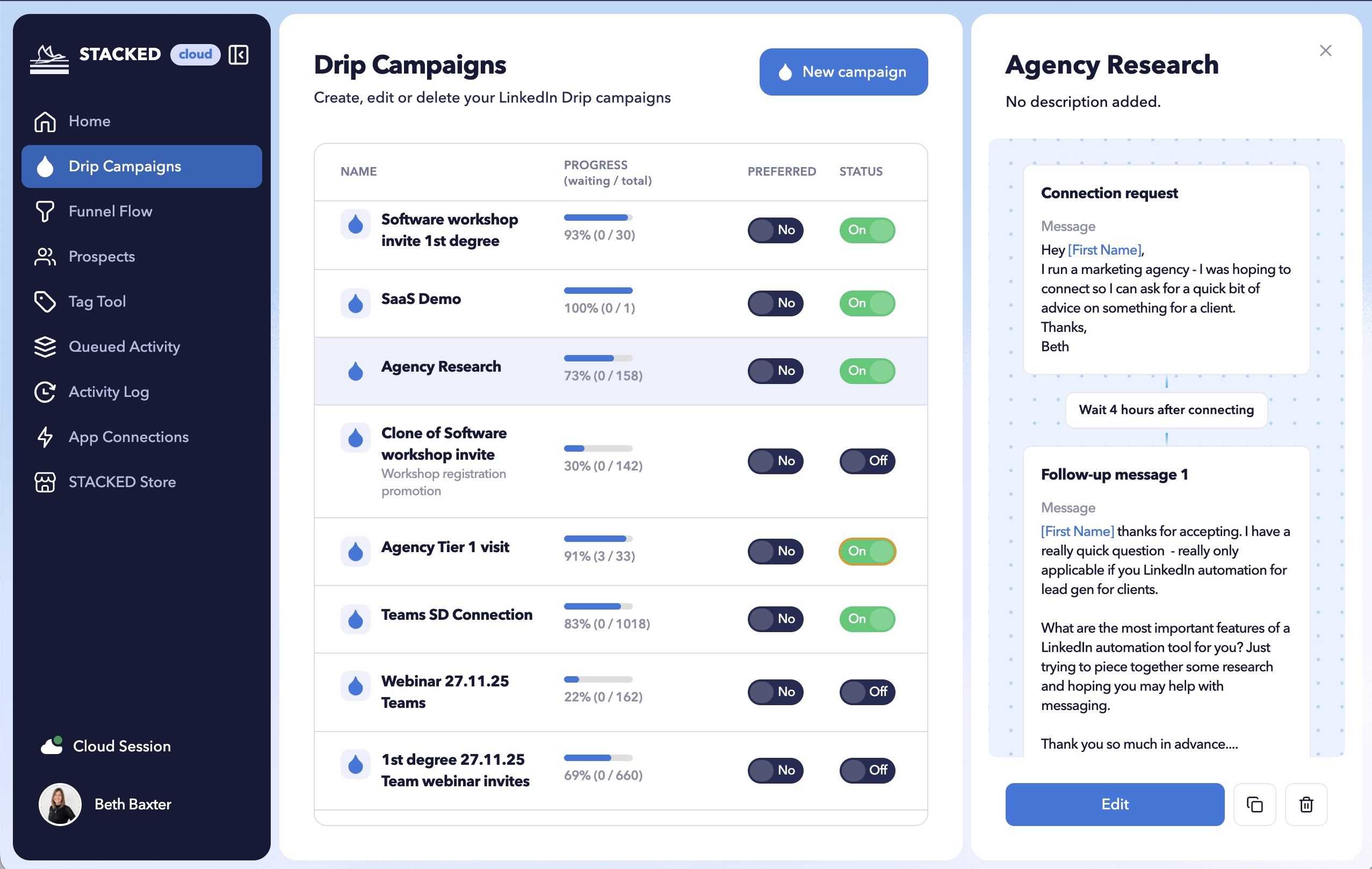
Here you can create, edit, and manage your LinkedIn campaigns.
Select New Campaign to get started.
You'll be able to give your campaign a name and add a description. This is particularly useful when you're running several campaigns at once.
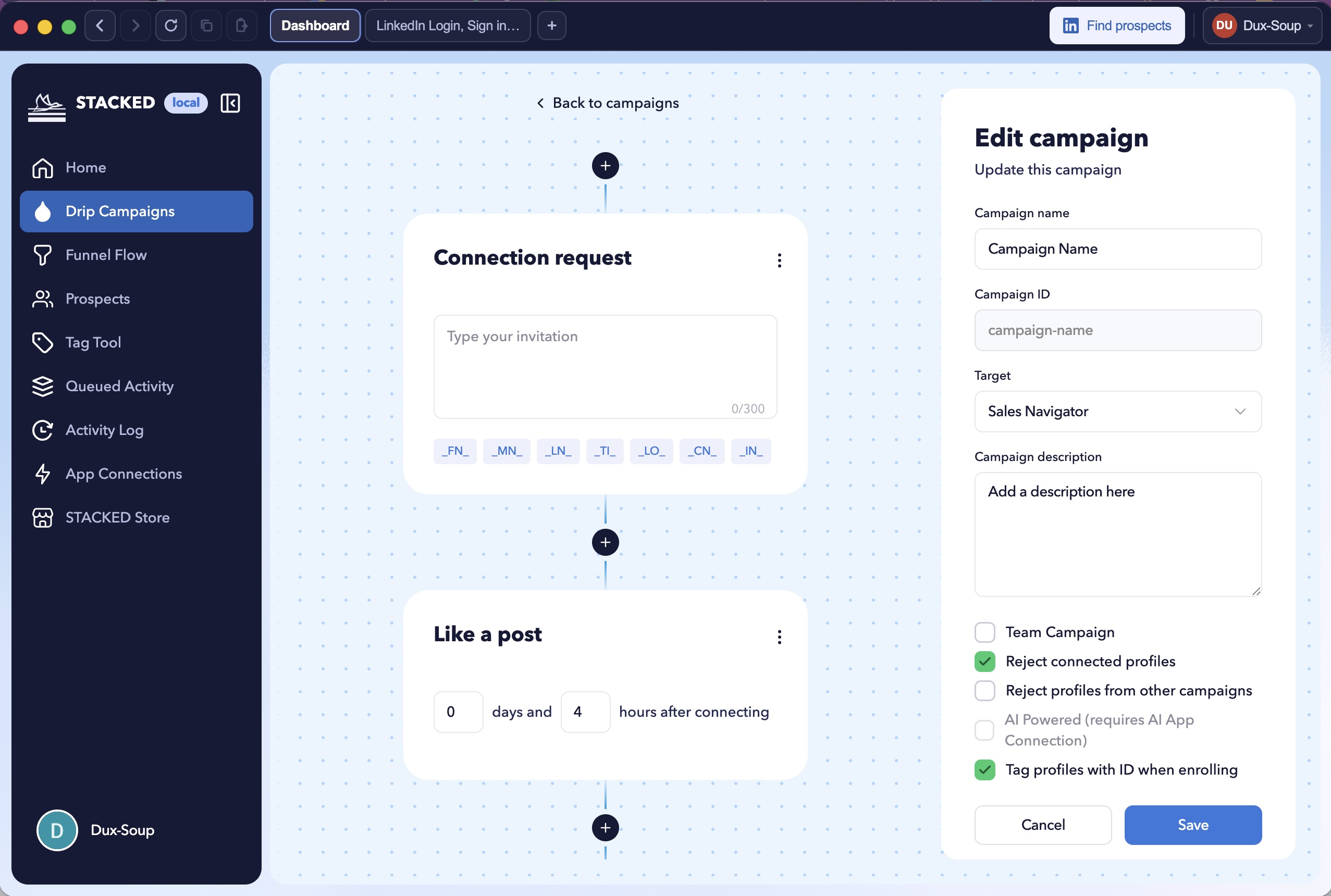
For example, you might create:
Germany – SaaS prospects – September
or:
Webinar promotion – existing connections
A clear naming system makes your campaigns much easier to manage later.
Watch: How to create campaigns and enroll prospects
Tag profiles when enrolling
STACKED can tag profiles with the campaign ID when they're enrolled.
This gives you an easy way to identify which prospects were added to a particular campaign and provides useful traceability when you're managing larger outreach programs.
Prevent duplicate outreach
If you're running multiple campaigns, you don't want the same prospect accidentally receiving overlapping sequences.
STACKED gives you options to reject connected profiles or reject prospects already associated with other campaigns.
For teams, team campaigns can also help prevent duplicate outreach between team members.
Choose where your campaign runs
Depending on your LinkedIn setup and the actions you're using, you can select the appropriate LinkedIn environment for your campaign, such as regular LinkedIn, Sales Navigator, or Recruiter.
This is particularly relevant when you're using InMail, as those credits are associated with Sales Navigator or Recruiter.
Choosing your campaign actions
Once you've created the campaign, it's time to build your sequence.
STACKED currently provides seven campaign actions:
- Visit a profile
- Send a connection request
- Send a direct message
- Like a post
- Send an InMail
- Follow a profile
- Endorse skills
These actions are the building blocks of your campaign.
You can combine them in different ways depending on your objective.
For example, a simple prospecting campaign might look like:
Visit → Connection request → Follow-up message
Whereas a campaign designed to engage existing connections could look like:
Like post → Message → Follow-up message
And a data-gathering campaign could simply contain profile visits.
Watch: The different campaign types you can build with STACKED.
Why start with a profile visit?
A profile visit can be a useful first step in an outreach sequence.
It can help create an initial touchpoint before you send a connection request or message.
It's also important to allow enough time between actions. LinkedIn notifications and activity aren't necessarily presented to users instantly, so adding a delay between a profile visit and your next action can give that initial interaction time to register.
For example:
Day 1: Visit profile
Day 3: Send connection request
After connection: Send follow-up
The exact timing you choose will depend on your audience and campaign objective.
Personalizing your campaign messages
Personalization can make a big difference to how relevant an outreach message feels.
STACKED makes it easier to add profile information to your messages using built-in personalization fields.
Instead of manually typing a person's name or job title, you can insert the appropriate variable directly into your message.
For example:
Hi [First Name], I noticed you're working in [Industry]...
Just remember that personalization fields take up space once they're populated.
This is particularly important for connection requests, where LinkedIn limits the message length.
So don't just look at the character count of the template itself. Consider how long the actual personalized values could be.
Adding AI-powered personalization
If you have an AI integration enabled, you can also use STACKED AI to personalize campaign messaging with ChatGPT, Claude, or Gemini.
Rather than sending exactly the same message to every prospect, the AI can use available profile information to adapt the message for the individual.
For example, information such as:
- Job title
- Company
- Industry
- About section
- Other available profile information
can be used to add relevant context to the message.
The important thing to remember is that AI personalization depends on the information available on the target profile.
If a profile contains very little useful information, or the AI integration isn't available, the standard message you've entered can be used instead.
For that reason, your underlying message should still make sense without AI personalization.
Read: STACKED AI: Individually personalized messages at scale
A simple LinkedIn outreach campaign example
Let's put the pieces together.
Imagine you're targeting second- and third-degree connections and want to start conversations with potential prospects. Your campaign could look like this:
Step 1: Visit
Start by visiting the prospect's profile.
Step 2: Wait
Give the prospect some time before taking another action.
Step 3: Connect
Send a connection request, with or without a personalized message.
Step 4: Wait for the connection
Once the prospect accepts, continue to the next stage.
Step 5: Follow up
Send a short, relevant message.
Step 6: Engage
Depending on your strategy, you could follow the prospect or engage with one of their posts.
Step 7: Continue the conversation
Add another follow-up if appropriate.
The result is a structured sequence rather than a single automated touch.
Campaigns aren't just for prospecting
One of the most useful things about campaigns is that you don't have to limit them to cold outreach.
Re-engage your existing network
Your first-degree connections are already part of your network, but that doesn't mean you're actively engaging with them.
You could create campaigns specifically for existing connections that:
- Like recent posts
- Send useful information
- Start conversations
- Build familiarity with your work
- Promote an event or resource
Your existing network can be an important source of opportunities, so don't overlook it.
Promote an event
Create a campaign around an upcoming webinar, conference, or event.
You could visit relevant profiles, connect with prospects, and follow up with an invitation.
Gather prospecting data
You can also use campaigns for profile visits when your objective is to collect and analyze prospect information.
STACKED can capture available profile data, which you can then review or export for further analysis.
This turns LinkedIn activity into a source of prospecting intelligence as well as an outreach channel.
Enrolling prospects into a campaign
Once your campaign is ready, it's time to add prospects.
There are several ways to do this in STACKED.
Enroll from LinkedIn
Run a search in LinkedIn or Sales Navigator and build your target list.
STACKED adds an Enroll Prospects option, allowing you to select the campaign and choose how many prospects to enroll.
For example, you might select 50 prospects and add them to your campaign.
STACKED will then work through the sequence you've created.
You can also use the sidebar to enroll individual prospects when you want more control over who enters the campaign.
Enroll from a file
If you already have a list of LinkedIn profile URLs, you can upload a text or CSV file through the Funnel.
This is useful when your prospect list has been created outside LinkedIn.
Enroll from your clipboard
Already have a list of LinkedIn URLs copied somewhere?
You can paste those URLs directly into STACKED and enroll them into your chosen campaign.
Enroll from a search result
You can also copy LinkedIn URLs from search results and add them to a campaign.
This gives you several different ways to get prospects into your workflows, depending on where your data comes from.
What happens when someone replies?
This is one of the most important parts of a campaign.
When a prospect responds, STACKED can pause the campaign for that person.
That means you don't continue sending automated follow-ups when you've already started a real conversation.
From the Prospects area, you can review the conversation and decide what should happen next.
Depending on the situation, you can:
- Continue the campaign
- Qualify the prospect
- Qualify them out
- Move them to another campaign
- Unenroll them
You can also use AI to help triage responses and determine whether a prospect should continue through a workflow.
But when a response needs a human conversation, you can take over manually.
Monitoring campaign performance
Building the campaign is only the beginning.
Once prospects are enrolled, STACKED gives you visibility into how they're progressing.
The Funnel view lets you see how many people have entered a campaign and where they are in the sequence.
You can see prospects moving through stages such as:
Enrolled → Visited → Invited → Connected → Messaged
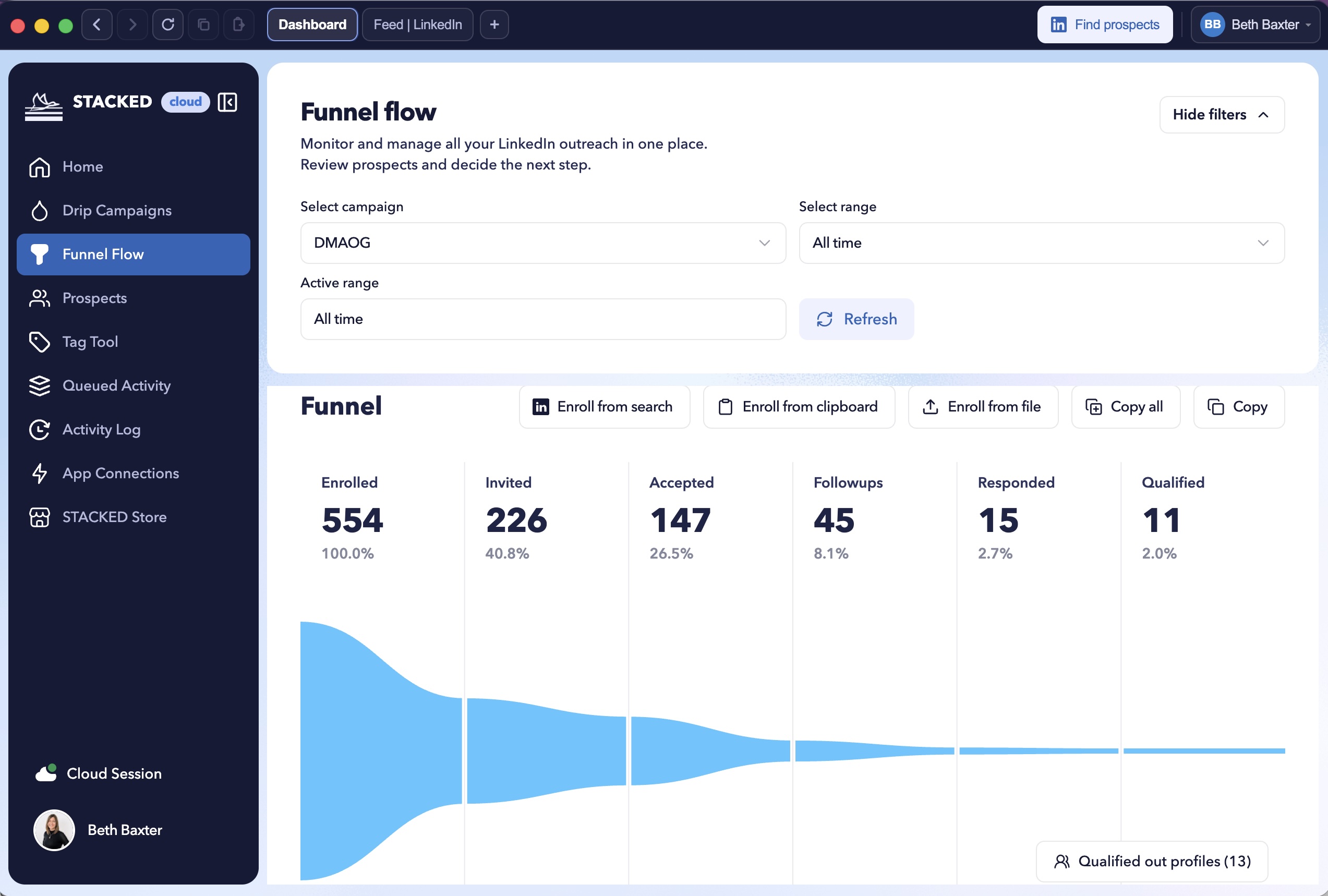
As the campaign runs, you'll also be able to monitor activity and see how your network is growing.
This gives you a much clearer picture of what is happening across your outreach rather than simply sending messages and hoping for the best.
Managing prospects
The Prospects section gives you another way to manage the people moving through your campaigns.
You can filter prospects by things such as:
- Campaign
- Connection degree
- Date range
You can also export prospect data to CSV.
If someone has responded, that information can be surfaced alongside the available profile information and conversation data.
This makes it easier to identify people who need your attention.
Watch: How to monitor campaign results and manage leads with STACKED
Use multiple campaigns together
You don't have to rely on a single campaign.
In fact, one of the strengths of STACKED is that you can run multiple campaigns in parallel.
For example, you might have:
Campaign A: Connection requests
Campaign B: Profile visits
Campaign C: Existing connection engagement
Campaign D: Event promotion
This allows you to run different types of LinkedIn activity at the same time while keeping each workflow separate.
The key is to stay organized and make sure your campaigns aren't creating conflicting or duplicated outreach.
Keep your LinkedIn activity organized
If you're using LinkedIn automation, it's important to understand the activity limits and throttling settings available in STACKED.
You can configure active hours and control the number of actions performed per day.
The aim is to build a sustainable workflow rather than simply maximizing the number of actions performed.
It's also worth being careful about running multiple LinkedIn automation tools against the same account. Using multiple tools can create overlapping activity and make it harder to keep track of what is happening.
Keeping your outreach in one organized system makes your campaigns much easier to manage.
Use campaigns as an ongoing system
The real power of campaigns comes from consistency.
Instead of thinking: "I need to do my LinkedIn outreach today."
Think: "I need to keep my prospect pipeline moving."
That might mean enrolling a new batch of prospects every few days while existing prospects continue moving through their sequences.
Over time, this creates a repeatable outreach process:
Define your audience → Build your campaign → Enroll prospects → Let STACKED run the sequence → Monitor responses → Have conversations → Refine your approach
That's a much more sustainable way to approach LinkedIn outreach.
Your LinkedIn outreach campaign checklist
Before switching a campaign on, run through this checklist:
- Have I clearly defined my target audience?
- Does the campaign have a specific objective?
- Is the sequence appropriate for the audience?
- Have I chosen the right LinkedIn environment?
- Are my messages personalized where appropriate?
- Have I checked connection-request character limits?
- Have I added sensible delays between actions?
- Have I prevented unwanted duplicate outreach?
- Do I know what should happen when someone responds?
- Are my daily activity limits configured?
- Do I know where I'll monitor campaign performance?
If the answer is yes, you're ready to start enrolling prospects.
Take your LinkedIn outreach further with STACKED
STACKED gives you the building blocks to create structured LinkedIn outreach campaigns without having to manage every repetitive action yourself. You can try it for free for 14 days.
You can create multi-step sequences, personalize messages, use AI-powered messaging, enroll prospects from different data sources, monitor campaign progress, and take over manually when a prospect responds.
And because you can create multiple campaigns, you're not limited to a single outreach strategy.
Start with one clearly defined audience and one simple campaign. Once you've seen how prospects move through the sequence, you can build from there.
The goal isn't simply to automate more LinkedIn actions.
It's to build a consistent, organized process for starting and developing more conversations.
Ready to build your first STACKED campaign?
Start by defining your audience, choose the actions that make sense for them, build your sequence, and enroll your first prospects.
Then let STACKED handle the repetitive work while you focus on the conversations that matter.
FAQs
What is a LinkedIn outreach campaign?
A LinkedIn outreach campaign is a sequence of actions designed to engage a group of LinkedIn prospects over time. In STACKED, a campaign can combine profile visits, connection requests, messages, follows, likes, InMails, and skill endorsements.
How many steps can a STACKED campaign have?
STACKED currently supports up to 12 steps per campaign. You can track a prospect's progress through each step and enroll them in another campaign after the sequence is complete.
Can I personalize LinkedIn messages in STACKED?
Yes. STACKED supports personalization fields that can use available profile information, such as a prospect's name. You can also use AI integrations to personalize messages for individual prospects.
Which AI tools can STACKED integrate with?
The webinar demonstrates integrations with ChatGPT, Claude, and Gemini for AI-powered message personalization.
What happens if AI personalization doesn't work?
If AI can't generate a message because of a service issue, insufficient information, or unavailable credits, STACKED can fall back to the standard message you've configured for the campaign.
Can I use STACKED for people I'm already connected to?
Yes. You can create campaigns for your existing first-degree network. These campaigns can use actions such as profile visits, follows, likes, and messages without needing to send a connection request.
Can I run more than one campaign at the same time?
Yes. STACKED supports multiple campaigns running in parallel. You can use different campaigns for different audiences or purposes, while configuring your campaigns to avoid duplicate or conflicting outreach.
What happens when someone replies to my campaign?
When someone responds, their campaign pauses. You can then review the conversation and decide what to do next rather than continuing the automated sequence.
Can I enroll prospects from LinkedIn search results?
Yes. You can enroll prospects from LinkedIn or Sales Navigator search results using the Enroll Prospects function. You can also enroll prospects individually or from files and clipboard lists containing LinkedIn URLs.
Can I use STACKED to collect LinkedIn profile data?
Yes. The webinar describes visit-only campaigns that can be used to gather profile information. Depending on your setup, this data can be extracted, downloaded, or accessed through an API.
Does STACKED help prevent duplicate outreach?
Yes. Campaign settings can help prevent people who are already in another campaign from being contacted again. Team campaigns can also help prevent duplicate outreach when multiple people are working on the same account.
Can I connect STACKED to my CRM?
Yes. The webinar lists integrations with CRM and workflow tools including HubSpot, Pipedrive, GoHighLevel, Salesforce, Freshsales, Zapier, and Make, as well as communication tools such as Slack and Teams.
How should I manage LinkedIn automation safely?
STACKED includes planner, active-hours, and throttling settings to help manage activity. You should also follow LinkedIn's limits and policies and avoid running multiple automation tools against the same account at the same time.













.png)

