How to connect with people from your list with Dux-Soup

Dux-Soup is known as a LinkedIn automation tool that auto-visits profiles and sends connection request messages for you. The only thing you have to do is set up a LinkedIn search and Dux-Soup is ready to run. Tell it to connect to the list of profiles, or enrol these profiles into LinkedIn nurture campaigns.
But what if you already have a list of people that you want to contact? For this, Dux-Soup has a really great feature called “Revisit Data” which can be used for visiting profiles from your uploaded list and sending them personalised connection request messages.
This blog demonstrates "Expert Settings" that you can easily enable in the Options menu, under the User tab.
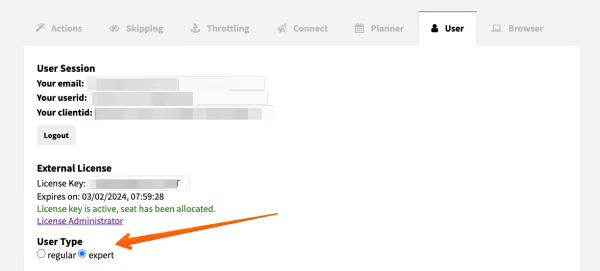
To start with, it’s important to note that this feature is only available for Dux-Soup Professional users and will not work with the free Dux-Soup Starter Edition. If you're not already a Dux user, then give our free Dux-Soup trial a go - you get 14 days absolutely free and we don't even ask for any payment details.
So how does Revisit Data work? Imagine the scenario where you have a list of LinkedIn URLs for people from various companies, industries or locations. You would like to connect with these profiles and send them a message but don’t really know where to start.
You can refer to our video tutorial on how to revisit LinkedIn data with Dux-Soup.
The process is very easy, just follow these steps to upload your desired list to Dux-Soup for revisiting and Dux will do all the work for you.
Step 1
The first step is to tidy up the data on an Excel sheet and prepare it for revisiting. It’s crucial to match the format of the file, otherwise, Dux-Soup will not be able to read the file. Dux-Soup recognizes a certain format of the document and in order to work, you need to make sure your document contains these 3 columns, with these exact (case sensitive) columns headings:
- Profile (LinkedIn URL)
- First Name
- Last Name
See an example here:

A few things to note:
- Make sure your file does not contain any empty rows or columns
- Ensure that the headings Profile, First Name and Last Name columns start with capital letters
- It does not matter if the links are obtained from Standard LinkedIn or Sales Navigator, Dux-Soup will recognize them both
- If you don’t have the first or last names you can use dummy values, e.g. ‘-’ . Just make sure the columns have some data.
Step 2
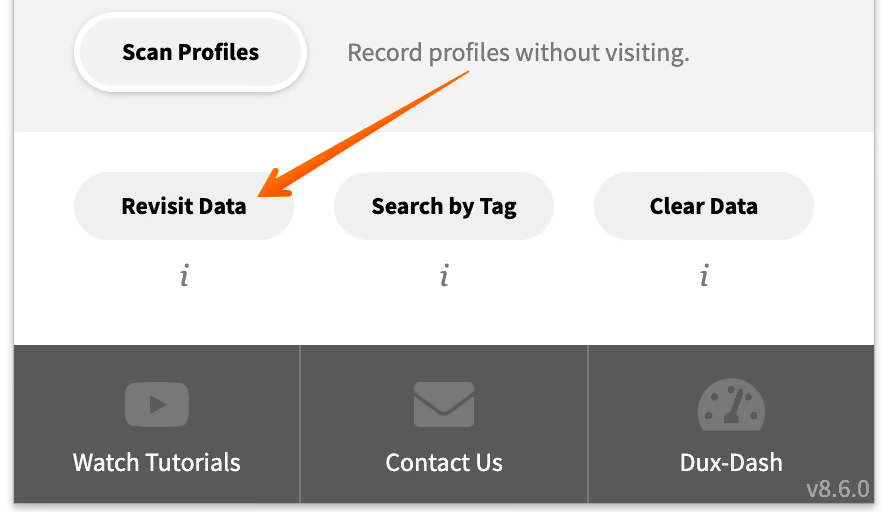
Now that your file is ready, it’s time to upload to it to Dux-Soup for revisiting. Save it as a CSV file and open your LinkedIn. Click on the Dux-Soup icon and click on Revisit Data button.
Step 3
It will bring you to a new window where you can upload your CSV file.
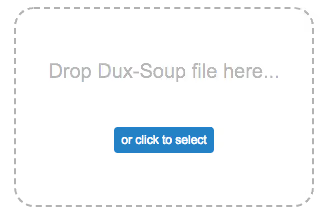
Once the file has been uploaded, you should see a table that looks like this:

Step 4
Now you need to set up Dux-Soup to send automated connection messages. This is a really important step because sending a personalised message together with your invite gives more chances for the request to be accepted.
Click on Dux-Soup and head over to Options.
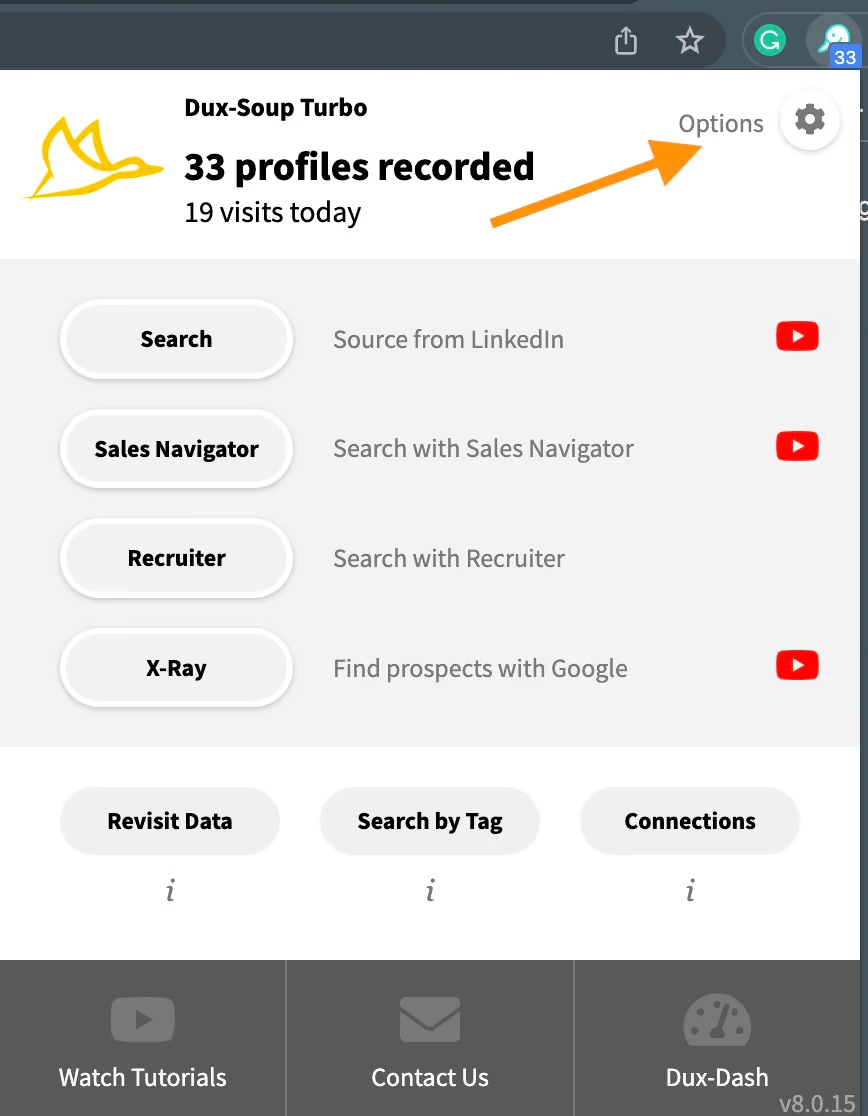
Under Automated Actions, make sure you enable these two boxes as shown in the example:
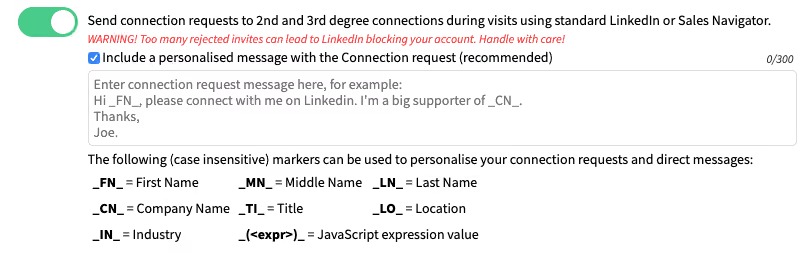
Now you can start typing your desired intro message. Note the character count and keep it short — you just want to let a person know why you are trying to connect with them.
To help you personalise your message, Dux-Soup has a variety of personalization markers that can and should be used in your message.
Now that your message is set, you can close the Options window.
Step 5
Go back to LinkedIn, click on the Dux-Soup icon and click on “Visit Profiles” or "Visit & Connect":
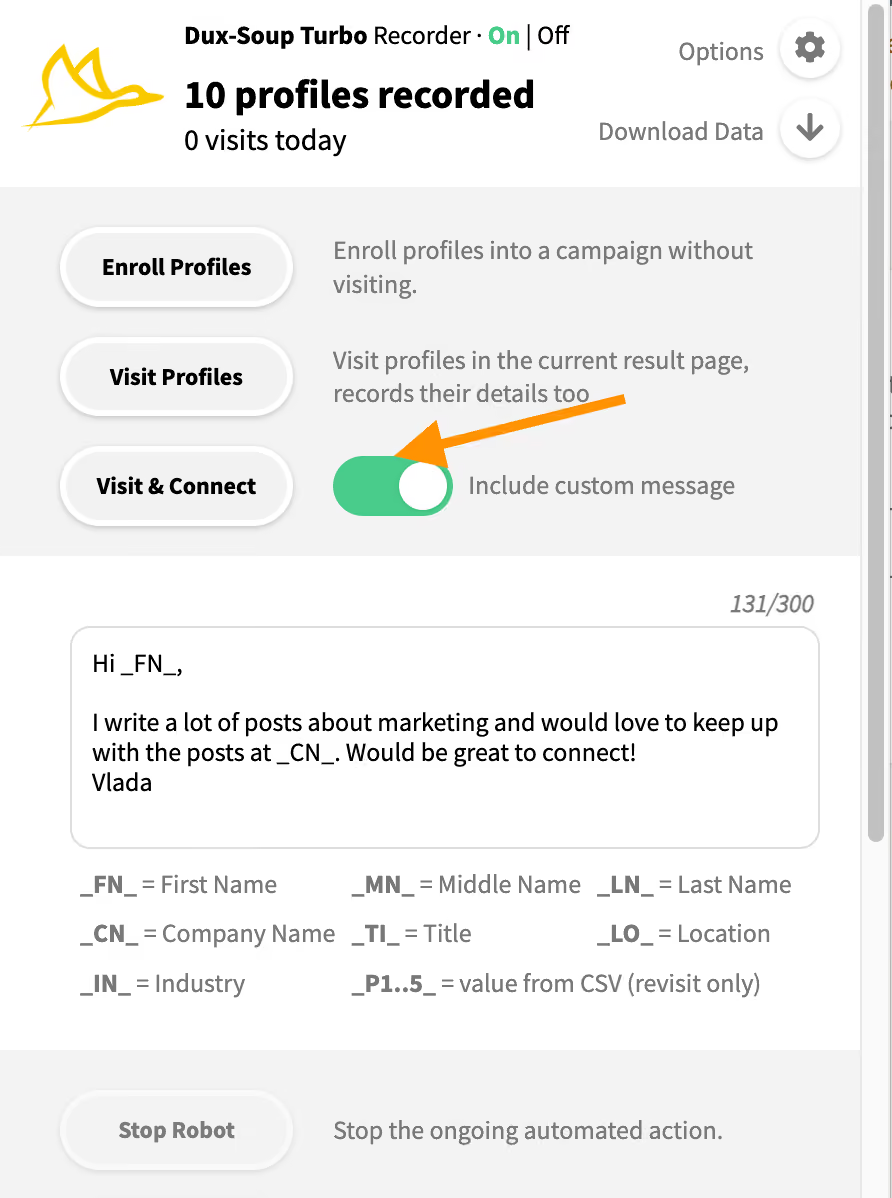
Now watch how the magic happens — Dux-Soup will visit every profile on the list and send them a connection request message.
Watch the video on sending personalized LinkedIn connection messages with Dux-Soup.
Congrats! You have mastered data revisiting with Dux-Soup and deserve a round of applause!

If you need any help with data revisiting or have any other Dux-Soup related questions, feel free to get in touch at info@dux-soup.com and we’d be happy to help!
Remember - If you're not already a Dux user, then give our free Dux-Soup trial a go - you get 14 days absolutely free and we don't even ask for any payment details.














.png)

