How to search and filter with LinkedIn and STACKED

The importance of LinkedIn lists
If you're using LinkedIn for lead generation, one of the first things you need to get right is your prospect list.
It sounds simple, but who you choose to target can have a huge impact on the results you get from your outreach.
LinkedIn's search tools make it possible to find people based on things like their job title, industry, company, location and more. The trick is knowing what to look for and building a list that actually matches the people you're trying to reach.
A few things to keep in mind:
- The better your list, the better your leads. If you're targeting the right people from the start, your outreach has a much better chance of getting a response.
- Don't rush the list-building stage. It can be tempting to build a huge list and start sending messages straight away, but relevance is more important than volume.
- Your list and your message should work together. Think about why you've chosen these particular prospects and make sure your messaging reflects their role, industry, or likely challenges.
In other words, don't just build a list of people who could be interested. Build a list of people who have a good reason to be interested.
Segmenting your LinkedIn lists
Once you've built your list, you can make your outreach even more targeted by splitting your prospects into smaller segments.
For example, you might create separate lists for different job titles, industries, company sizes or locations. You could then tailor your messaging to each group rather than sending everyone the same generic message.
This is particularly useful if you're running LinkedIn outreach at scale.
With a LinkedIn automation tool like STACKED, you can create different campaign sequences for different audiences. Automated connection requests and follow-up messages can then be sent at intervals you choose, helping you stay in touch with prospects without having to manage every message manually.
The important thing is to keep your targeting and messaging connected. The more relevant your campaign is to the people receiving it, the more likely they are to engage with it.
Build a relevant list, segment your prospects and tailor your messaging. That's the foundation of effective LinkedIn lead generation.
Try STACKED for free and see how it can help you automate your LinkedIn outreach.
One of the great things about LinkedIn is that there are lots of different ways to find and build prospect lists.
With STACKED, you can automate activities across a wide range of LinkedIn lists, including:
- Search results on regular LinkedIn, Sales Navigator and Recruiter
- LinkedIn group members
- Alumni
- Profile viewers
- People who have liked or reacted to LinkedIn posts
- Shared connections
- Page followers
- Custom CSV files
- Sales Navigator lead lists
- Recruiter project lists
With so many options available, you can build lists around the people who are most relevant to your business, rather than relying on a one-size-fits-all approach.
In this guide, we'll focus on how to get the most out of LinkedIn search results. We'll look at using LinkedIn's filters, Boolean search and Regex to make your searches more precise — helping you find the right prospects and turn them into potential customers.
Advanced LinkedIn search using all filters
One of LinkedIn's biggest advantages for lead generation is the amount of information available on each profile.
Because LinkedIn organises profile information into specific fields, you can use that information to narrow down your searches and find people who match your ideal customer profile.
For example, you might want to find people with a specific job title. Rather than searching through hundreds of profiles manually, you can add that title to your search and let LinkedIn find profiles that match.
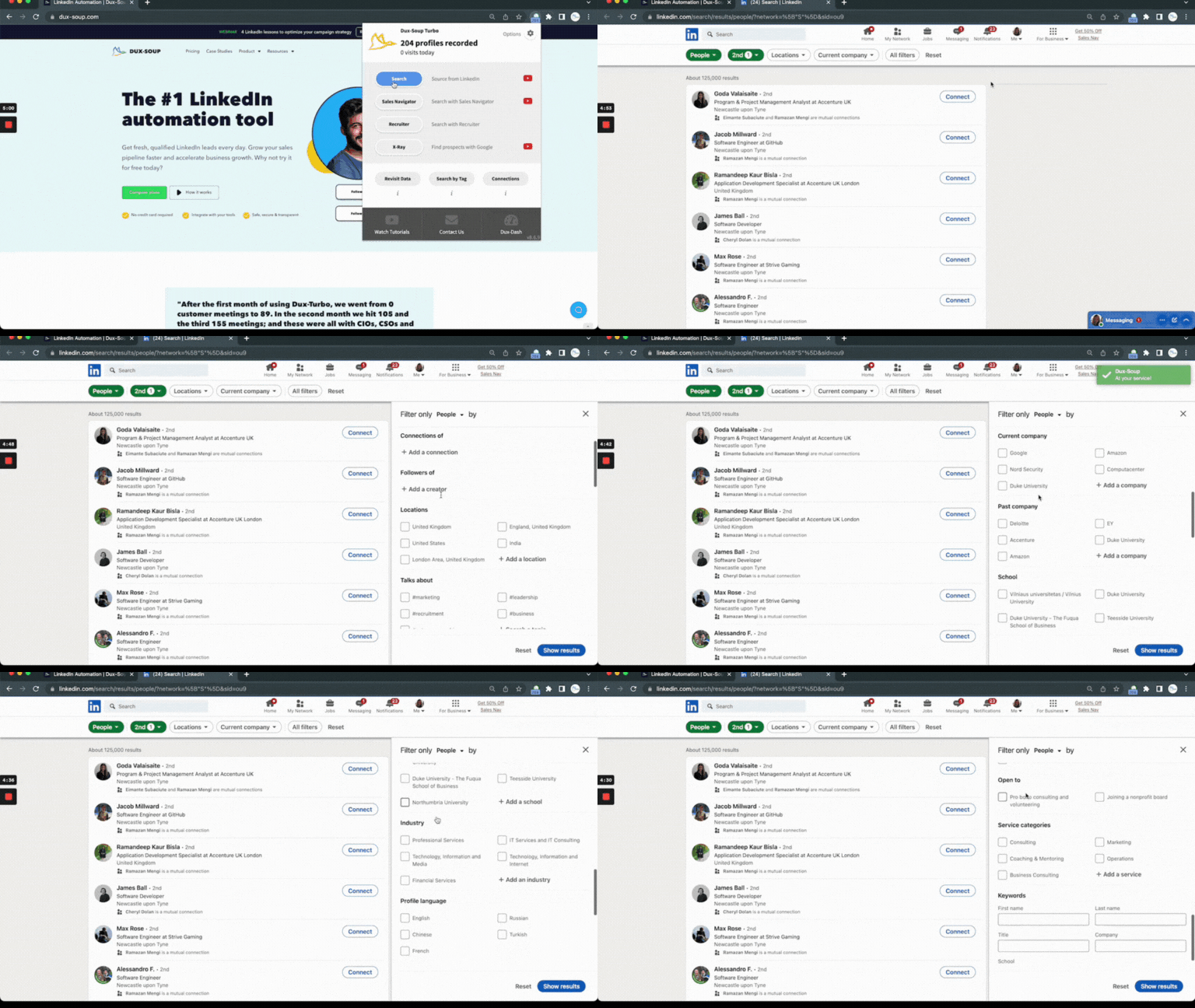
You can make your searches even more specific by using LinkedIn's All Filters option.
After running a search, select All Filters to see the different criteria you can use to refine your results.

Depending on the LinkedIn account and search you're using, these can include:
- Connections of – find people connected to a specific person
- Locations – target prospects in specific locations
- Current companies – find people who currently work for particular companies
- Past companies – search for people who have previously worked at specific companies
- Industries – narrow your results by industry
- Profile language – find profiles using a particular language
- Schools – search for people who attended specific schools or universities
- Contact interests – find people based on their listed interests
- Services – identify people offering specific services
- First name, Last name, Title, Company and School – search for specific details within these profile fields
The more specific you can make your search, the more relevant your prospect list is likely to be.
And that's important when you're using automation. Automation works best when you start with the right people.
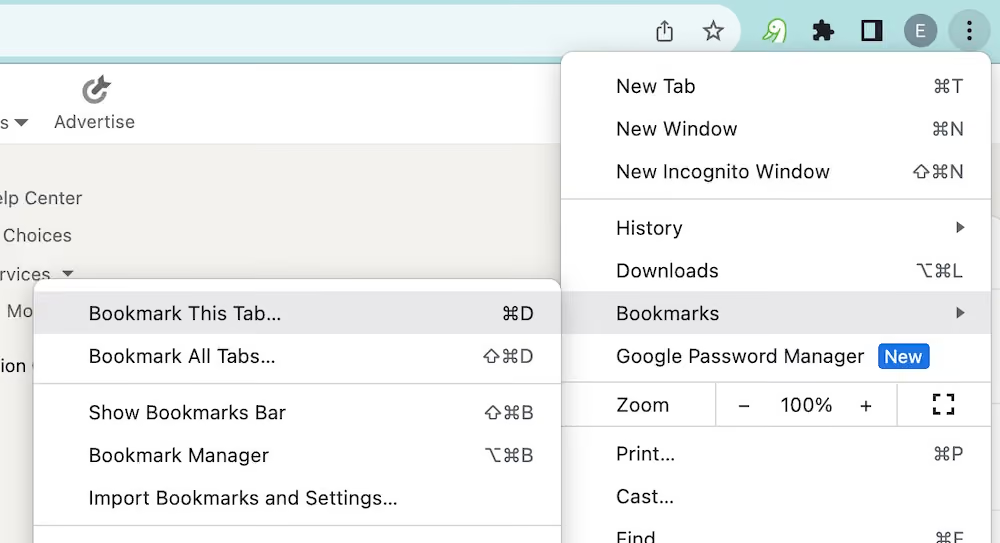
Tip: Bookmark your LinkedIn search in Chrome so you can come back to it, as below.
Additional search criteria with Sales Navigator
LinkedIn Premium plan search filters (LinkedIn Recruiter and Sales Navigator) include additional filter options such as:
- Years of Experience
- Function
- Seniority Level
- Company Size
- When Joined
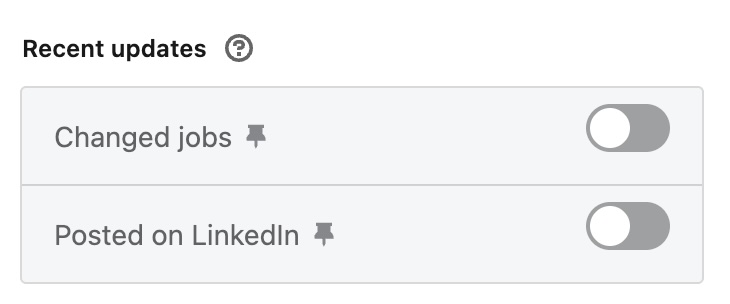
You can also search within groups, and find contacts with recent activity e.g. those that have posted on LinkedIn within the last 30 days, changed jobs within the last 90 days, or viewed your profile.
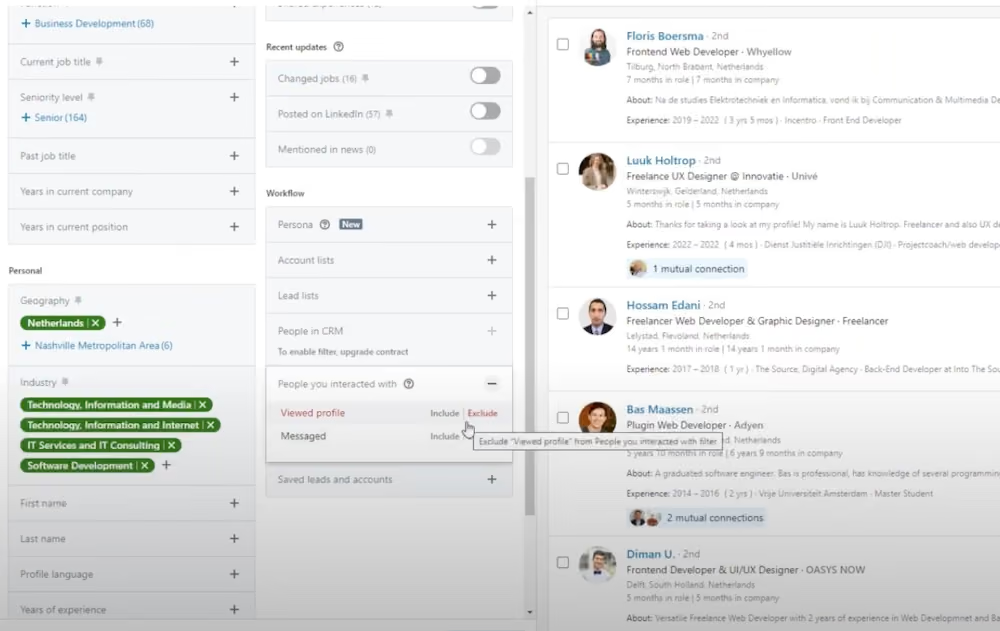
In the workflow section of Sales Navigator, you can also remove the people you have already interacted with which is a really nice tip to finding new profiles.
Tip: For an exact phrase, enclose the phrase in quotation marks. For example, type "product manager". You can also use quotation marks if you want to find someone with a multi-word title.
Note: LinkedIn search only supports standard, straight quotation marks (").
Always make use of as many search filters as possible, and use Boolean search terms in keywords, as explained below.
The Magic of Boolean Search
Boolean search is a type of search that allows LinkedIn users to combine keywords such as AND, NOT and OR to further produce more relevant results. For example, a Boolean search could be CEO OR Owner NOT Manager. This would limit the search results to only those documents containing the two keywords.
Note: Boolean search will work in the Company, Title, and Keyword fields in Sales Navigator.
OR Searches
People use different words to describe similar concepts on their profiles. For example, an owner of the business might have "Owner", "CEO" or "Director", which means that you can have LinkedIn return people who have any one of those terms in their profiles.
So, in our search for a business owner, we might do a search for CEO OR Director OR Owner:
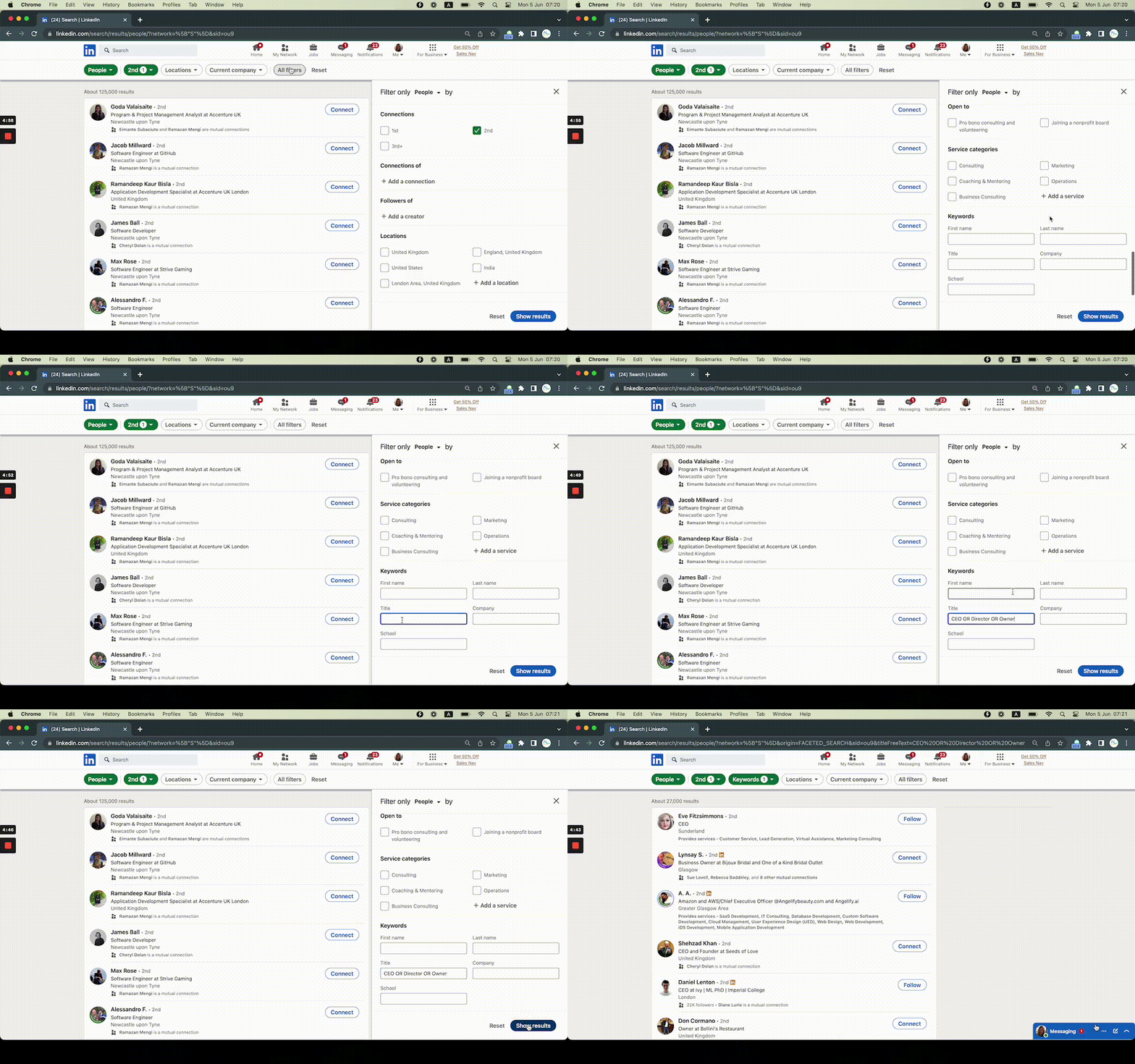
Note: “OR” will typically broaden your search results.
AND Searches
If you want your search to contain both keywords, for example, “web designer”, the Boolean AND expression will allow you to ensure that a person has both terms in their profile:
Web AND Designer
Note: “AND” will typically limit your search results.
For the best results, you can combine Boolean terms to exclude unwanted profiles, also known as the parenthetical search. For example:
Web AND (Designer OR Developer)
LinkedIn will show you all profiles that match “Web Developer” and “Web Designer” in their title section.
NOT Searches
The last function in the Boolean search trio is NOT. However, it can be used in conjunction with other functions such as AND and OR. So, for example, with the following search:
Web AND (Developer OR Designer) AND NOT Apprentice
LinkedIn will display every profile that matches your query, but without people who are apprentices.
Note: “NOT” will typically limit your search results
It’s worth mentioning that all Boolean expressions are case-sensitive, i.e. they have to be in capital letters: “OR”, “AND” and “NOT”.
LinkedIn Group Member lists
You can also easily find lists of profiles that belong to the same groups as you. These make a great target audience for your outreach as you know they have an interest in the topic PLUS you have something in common with them when sending your connection message.
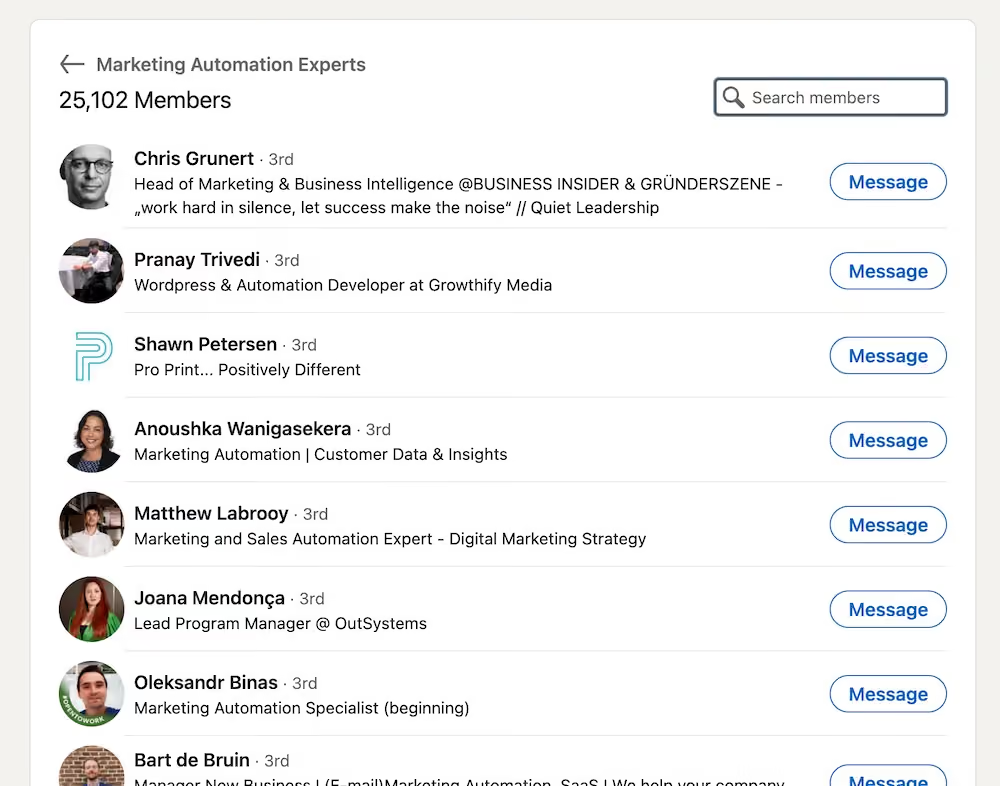
Tip: With a regular LinkedIn license, you can't narrow down Group lists. Because there can be thousands of members in a group, by scanning with STACKED, you can tidy it up before performing any outreach campaigns to the list.
You can't access members of LinkedIn groups that you are not in with regular LinkedIn. However, if you have a Sales Navigator license then you can! Check out our LinkedIn Groups Hacks to find out how.
List of profiles that like or react to content
If you, a competitor or a connection posts a relevant article that gets lots of reactions, why not use that list as a prospect list? It's super easy to do and you can make your connection message relevant to the post in question. Simply go to the post, click on the 'all' reactions and you've got a ready made list there. Set STACKED to work on automating your outreach and it's a quick win.

Read more on how to target people that like your content on LinkedIn.
STACKED skipping options and Regex (Regular expression)
STACKED offers a variety of skipping features and creates a powerful tool to filter your potential leads on LinkedIn.
If you're not already a STACKED user, then why not take advantage of our 2-week free trial? Just click on the link below to get started.
Let's show you an advanced feature called 'Skip profiles that match pattern'. By adding additional filtering rules using regular expressions, you will complement the LinkedIn search and skipping functionality.
The regex is located in STACKED Settings, Skipping tab.
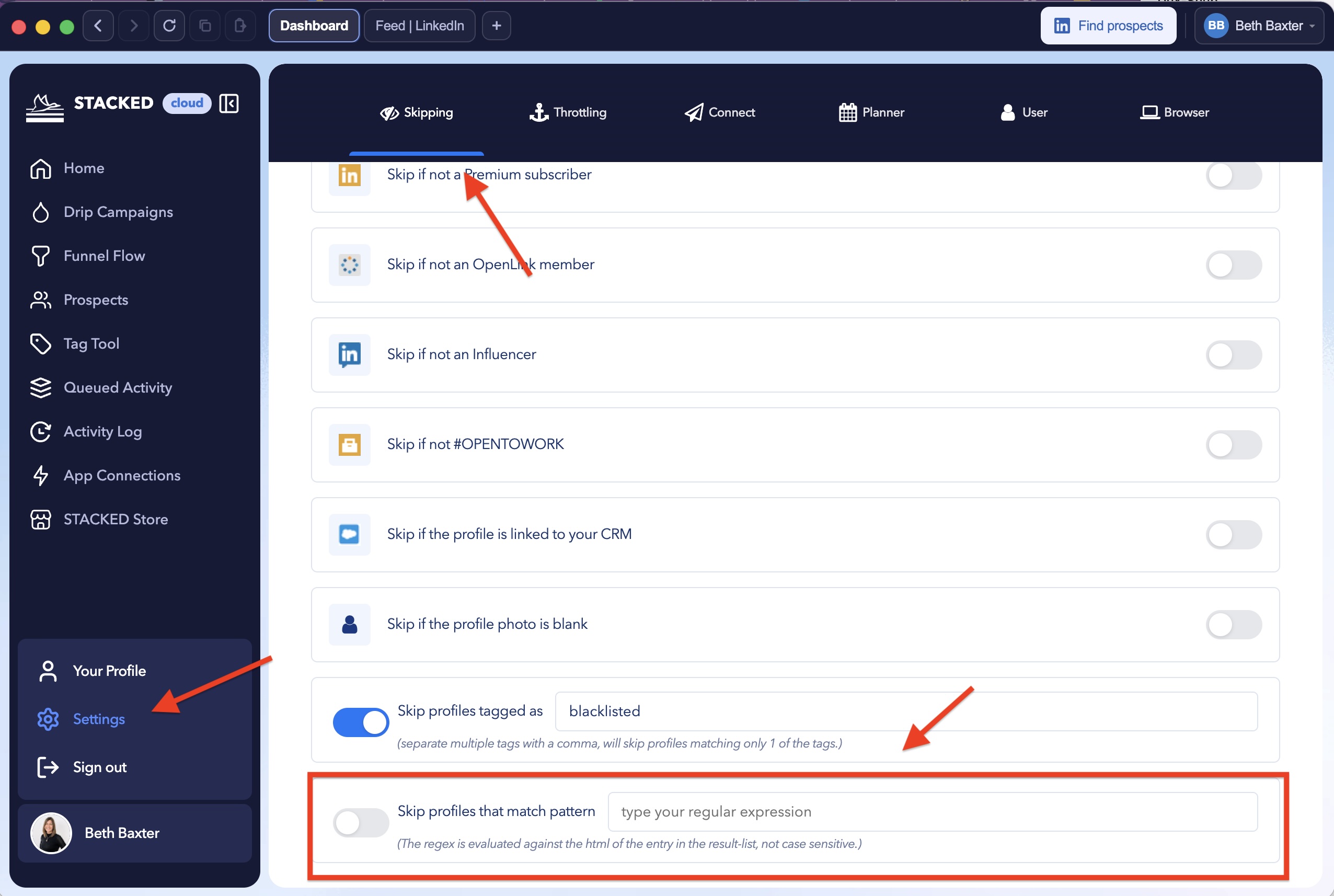
What is Regex?
A regular expression, often referred to as regex, is a string of characters that serves as a blueprint for identifying patterns during a search.
For example, you could use regex to make sure you skip people who work for a certain company or have a certain job title.

If you have a specific list of companies or LinkedIn profiles that you want to skip, you can copy the following expression and change the words marked in bold according to your needs:
(^|>)[^<]*?(?:ibm|microsoft)[^<]*?(<|$)
STACKED would then look at the html code for a profile and look for certain strings/patterns of text depending on what you have defined.
You can add more company names to the expression by separating them with a vertical line (|). All profiles that were found to have either IBM or Microsoft in their profile would be skipped with STACKED.
Note: It can be used against employer, current role, location - basically any text that appears on a search result.
Tip: Regex101 allows you to create, debug, test and have your expressions explained for PHP, PCRE, Python, Golang and JavaScript. The website also features a community where you can share useful expressions.
Summary
Practicing the above tips will make your LinkedIn search and filtering more effective and it will definitely kick it up a notch.
Using things like Boolean searches and applying regex helps to optimize your search results and get a more targeted and accurate list of LinkedIn prospects, and that can only help you win more business!
And there are many more ways to find targeted LinkedIn lists than just by using the search feature. We've explored a couple of them here with groups and reactions to posts.
Try STACKED for free
If you're not already a user, then why not start your free STACKED trial and give it a go - you get 14 days absolutely free, and we don't even ask for any payment details.
If you have any feedback, questions, or comments - we’d love to hear them. Feel free to contact us at info@dux-soup.com and we’ll definitely get back to you!














.png)