Zapier Filters & Delays
With STACKED, powered by Dux-Soup, you can connect with virtually any external app and create your own follow-up messaging workflows using Message Bridge. Pretty cool, right?
In this guide, we’ll show you how to bring Zapier into the mix and unlock even more ways to streamline your LinkedIn lead generation. Ready to get started? Let’s dive in!
First, grab yourself a free STACKED trial if you're not already a user.
STACKED Webhooks
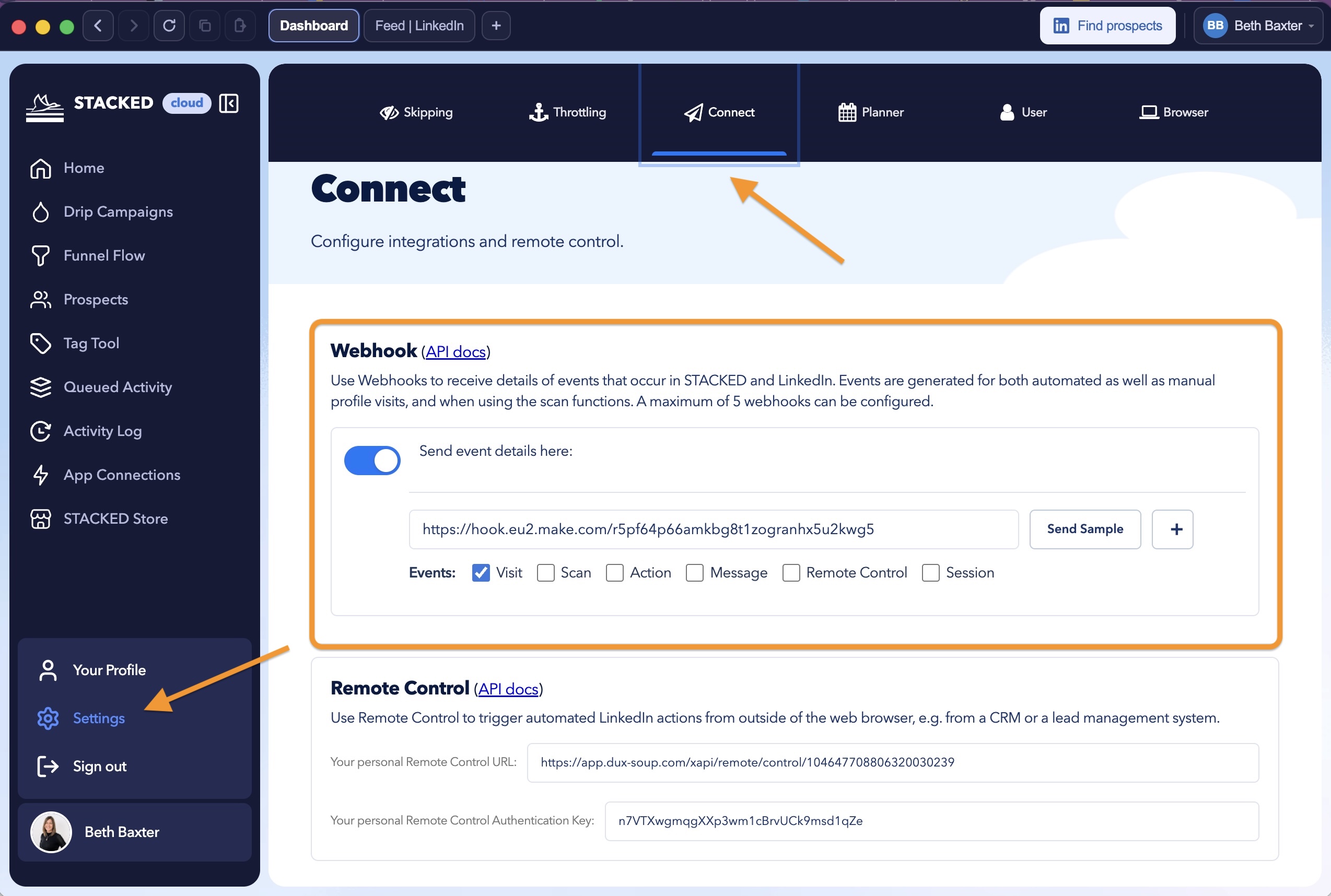
STACKED Webhooks are available with both local and cloud editions and are required to send your LinkedIn lead data to Zapier.
You can find STACKED Webhooks under Settings > Connect.
Enable your Webhook by sliding the toggle.
Put Zapier to Work
Once you've located your Webhook, it’s time to get creative! Zapier opens up a whole world of possibilities for automating your workflows.
Want to send LinkedIn profile data straight to Google Sheets? Or trigger a follow-up message to keep the conversation going?
The choice is yours! Connect your favourite apps, automate those repetitive tasks, and spend more time building meaningful relationships with your leads. The possibilities are endless.
A quick note about Zapier: Zapier regularly updates its interface to improve its features and user experience. We do our best to keep our guides and screenshots up to date, but occasionally, things may look a little different from what you see in our articles.
If you run into a different interface or need a hand getting things working, don’t worry — our support team is happy to help. Just drop us a line at info@dux-soup.com.
Go to Zapier and click 'Make a Zap'
Filtering a Webhook
Filters help you only export the data you need. Possibilities for filters are endless, for example:
- If you're interested in LinkedIn profiles from a certain location or job role
- If you're interested only in profiles that have email addresses
You can use filters to get a selective list of profiles you need.
Step 1: Go to Zapier.com and click 'Make a Zap!'

Step 2: Choose a trigger. This will always be "webhooks". You will need to copy and paste the webhook URL from Zapier to your STACKED Webhook field. After this, visit LinkedIn to trigger some test data. Please read this blog to learn how to do this.

Step 3: Click on "+ Add a Step" and choose Filter.

Step 4: Then click on "Save + Continue"

Step 5: In the next window, select "Data Email" and "Exists". Then, click on "Test & Continue"

If everything is set correctly, you should see this notification:

Step 6: Now you're ready to add the final step - "Action". It can be a sales CRM, Google Sheets or any other app or software you’d like to keep the information in.
Once everything is set, you can start visiting profiles with STACKED, and each contact with an email address will be transferred to your desired software!
Note: STACKED can capture the email addresses only of your 1st-degree LinkedIn connections. If you want to capture the emails for your 2nd and 3rd-degree connections, you will have to purchase lookups from the STACKED store.
Delaying a Follow-Up
Zapier has another great function - Delays.
We recommend using it with follow-up messaging. If you create a Zap without a delay, once someone accepts your invitation within 15 minutes, Dux-Soup will send an automatic "Thank you" message. However, if you'd like to make it seem more natural and less automated, Delay function will help you to achieve that.
First, you need to set up a follow-up message Zap and if you haven’t done this yet, read the step-by-step guide here.
Once you set up the follow-up message Zap, your sequence should look like this (please see the image below)
- Trigger (which is always Webhooks)
- Filter (adding a filter “Only continue if…)
- Action (STACKED Remote Control)

Delay Setup
- To add a delay click on + sign after the "Filter"

2. Click on "Delay for" and press "Save + Continue"

3. Choose the length of your delay before sending a follow-up message:

4. Now, click on "Send Test To Delay by Zapier"

5. And if all set correctly, you'll see this green notification:

6. Click continue and switch on the zap:

That is it! In this blog you learnt how to set up Filters and Delays on Zapier to improve your messaging with STACKED!
We hope this helps and that you found our tips useful. If you have any questions/feedback feel free to send us a message to info@dux-soup.com - the team is always happy to hear from you!













.png)

