STACKED for Agencies: How to Set Up and Manage Client Accounts
Managing LinkedIn outreach for multiple clients doesn’t have to mean juggling separate tools, browser sessions, and reports. STACKED brings your clients’ LinkedIn outreach into one desktop app, giving agencies a central place to manage accounts, campaigns, conversations, and performance.
In this guide, we’ll walk through the setup process and show you how to use STACKED’s agency dashboard to manage multiple client accounts more efficiently. You can also watch our webinar to follow along, complete with demos.
Try STACKED for free with our two-week trial.
1. Set Up Your STACKED Agency Account
STACKED is a desktop app powered by Dux-Soup, designed to run LinkedIn outreach outside the Chrome extension environment. It offers both local and cloud deployment, with the agency solution focusing on cloud-based account management.
How to buy
Go to dux-soup.com/pricing and select whether you want local (all automation runs from your local computer) or cloud (all automation runs from our infrastructure so you can turn your computer off). If in doubt, choose STACKED cloud, which doesn’t depend on your computer being left on, and has sufficient resources to run all of your client accounts.
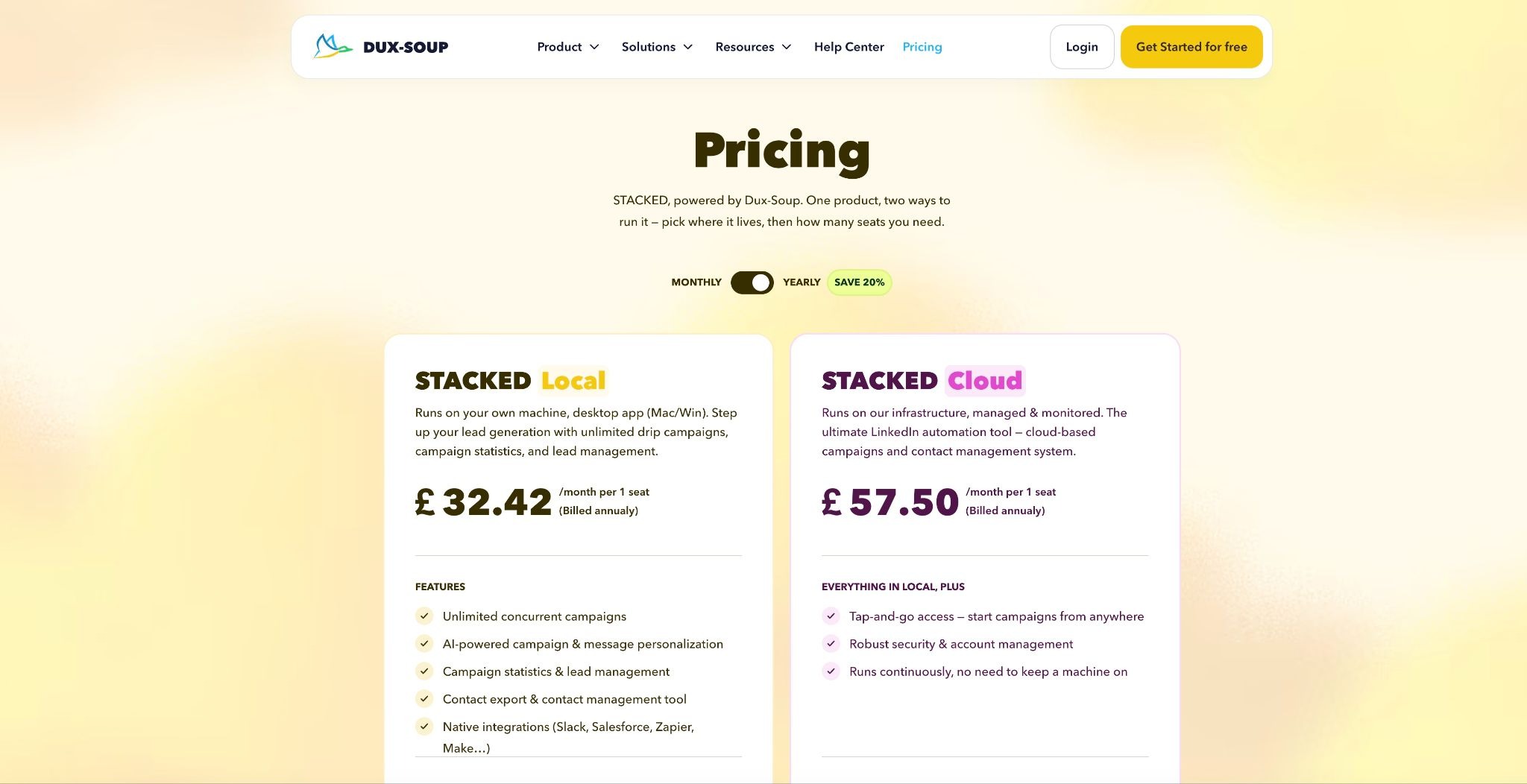
Click the ‘Buy now’ button at the bottom of cloud or local once you’ve made your selection.
Select the Postpaid payment model. For agencies, we offer a flexible, monthly billing model, so the number of seats you pay for can change as your client portfolio grows or shrinks. You get charged at the end of the month only for the number of seats you’ve used, on a daily pro-rated basis.
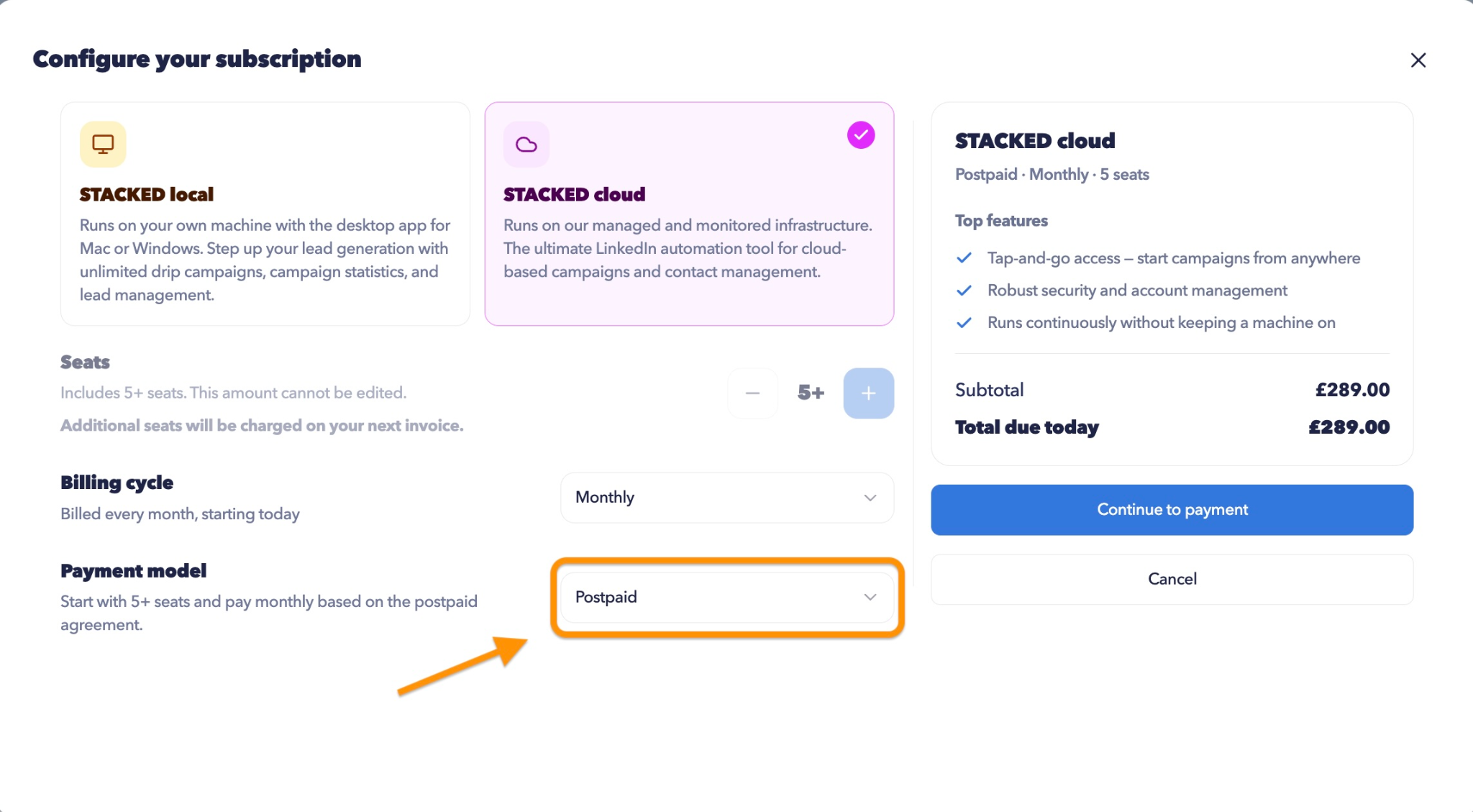
You will see there is a minimum of 5 seats with a STACKED cloud Postpaid plan for agencies. You can add more than 5 seats, but you can’t reduce the number below 5.
Next, click ‘Continue to payment’ and enter your billing information.
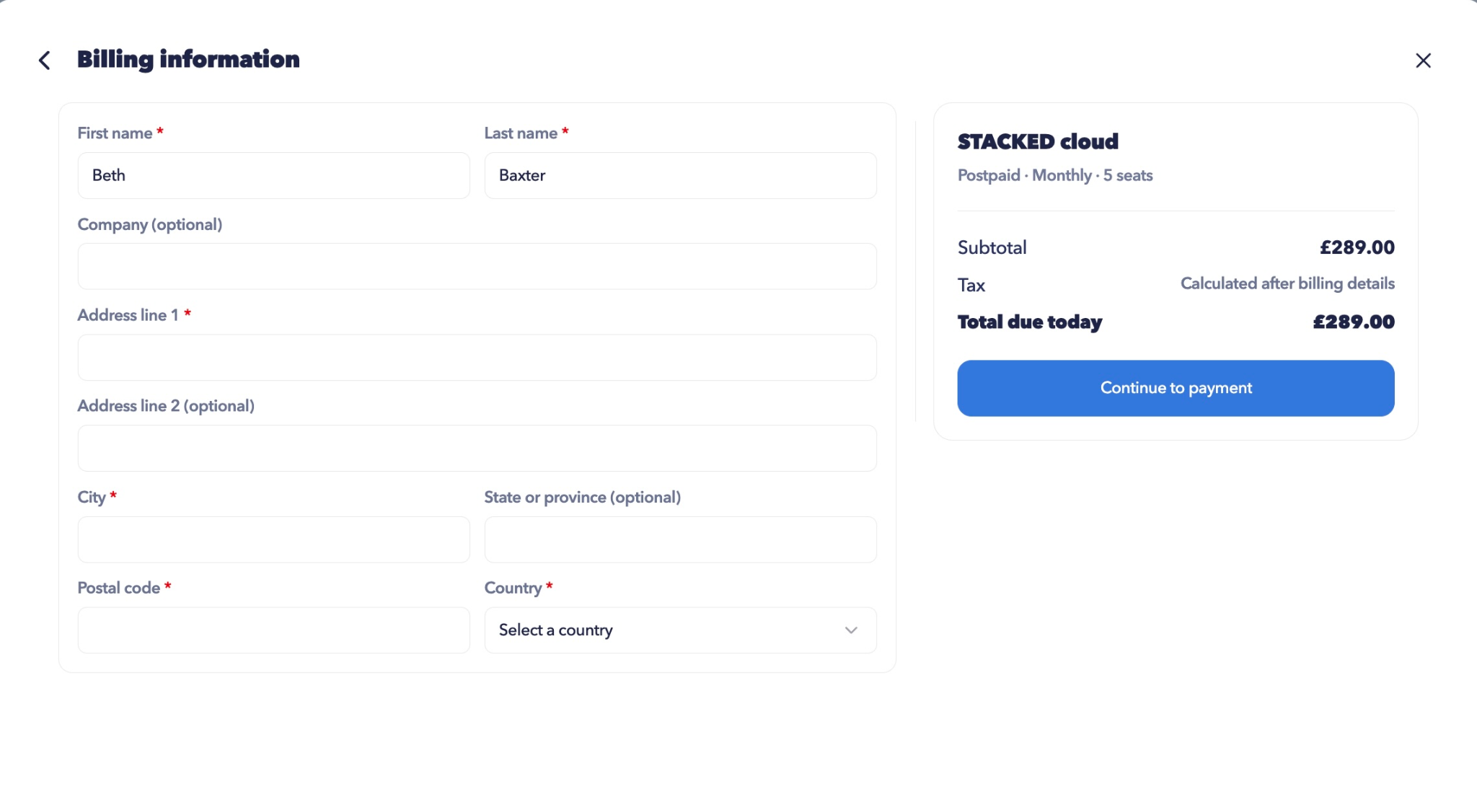
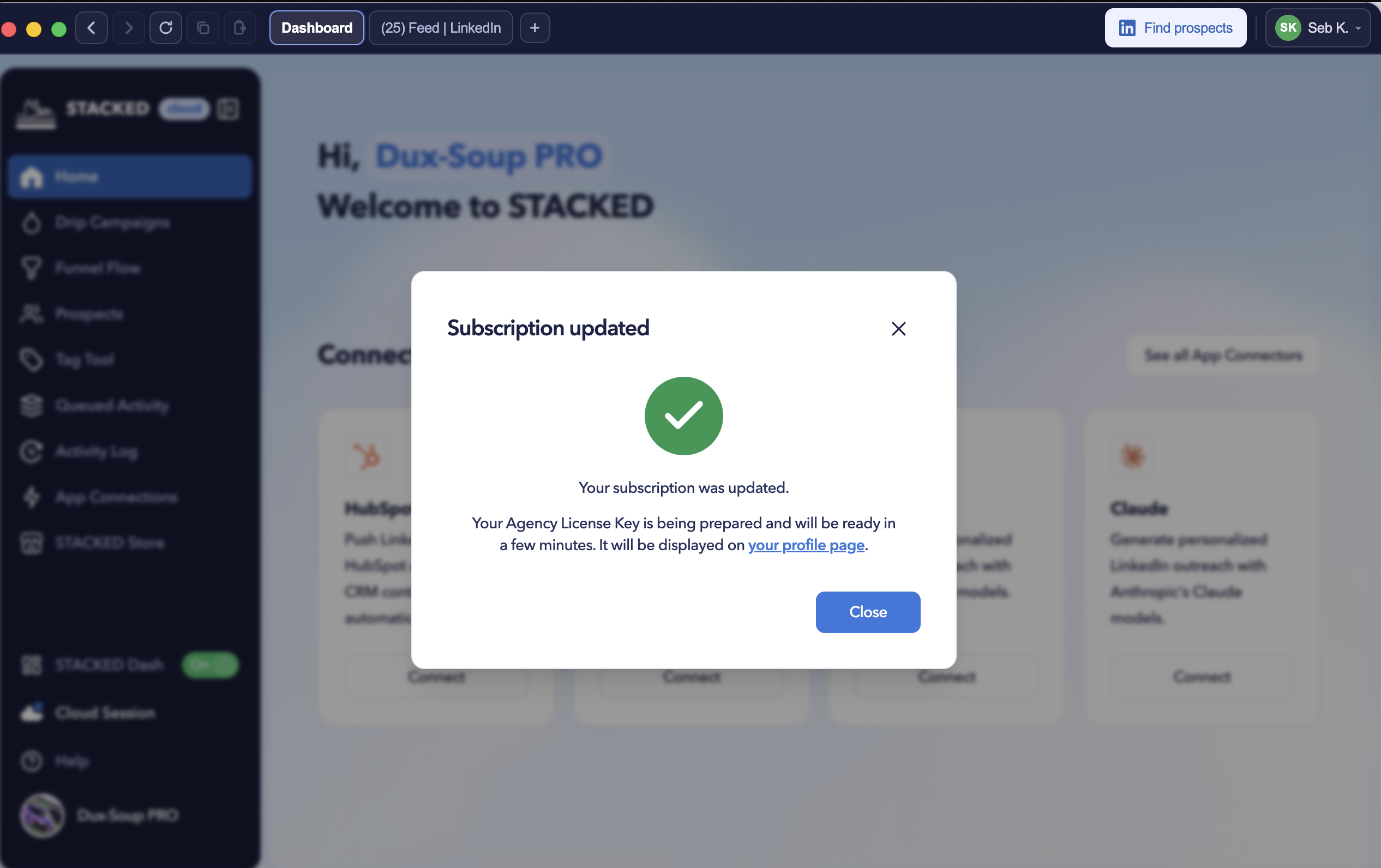
You'll get confirmation of your purchase, and your license key will be automatically added to your STACKED dashboard.
So now you’ve purchased STACKED, what happens next?
To get started, visit the STACKED website and download the app.
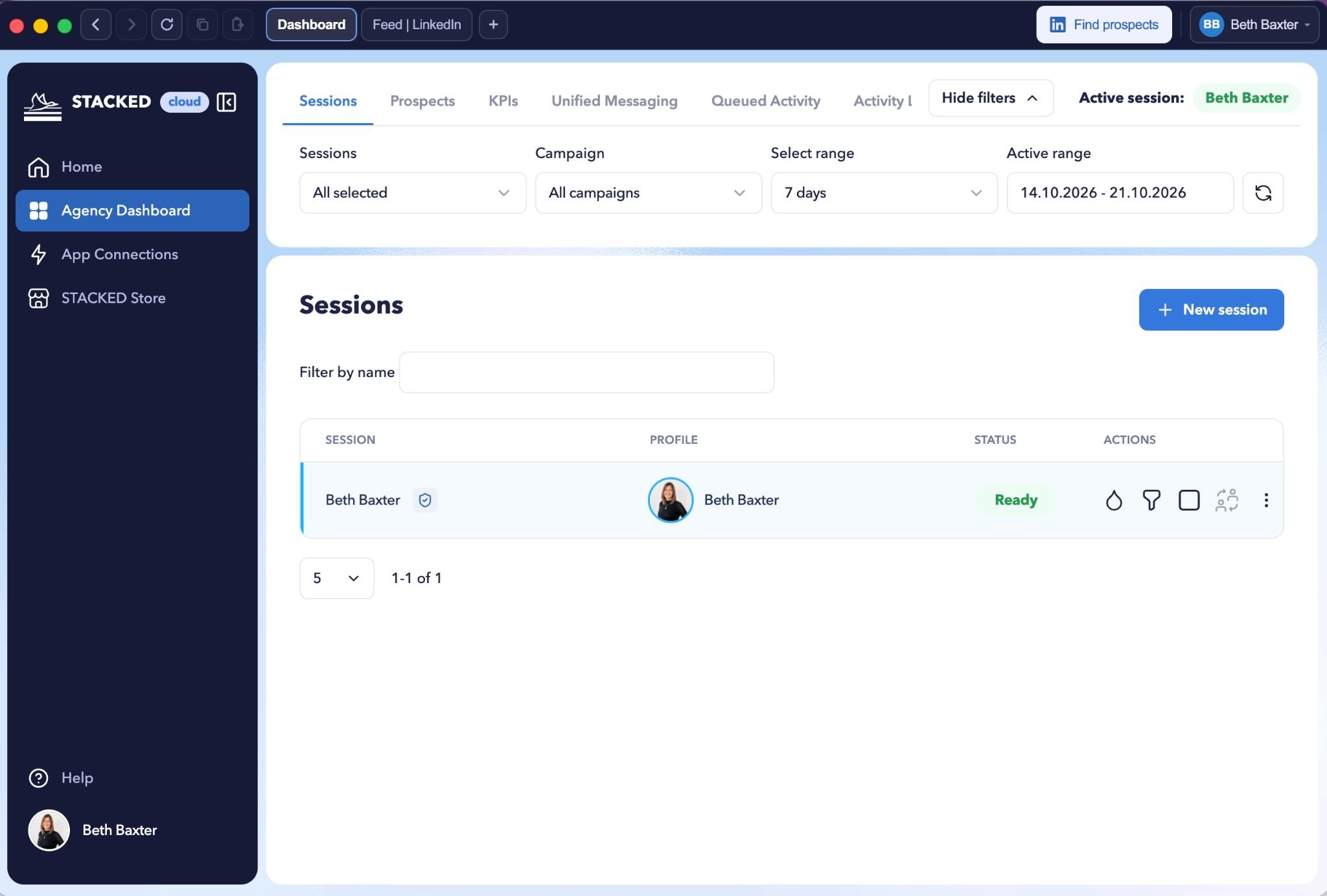
Open STACKED, sign in with your Google Account and go to the Agency Dashboard. This is where you’ll manage your client sessions and oversee your outreach activity.
2. Add a Client’s LinkedIn Account
When you bring on a new client, the first step is to create a new session for their LinkedIn account.
- Click ‘+ New Session’.
- Enter the client’s details. Add their first and last name, then select the available license key.
- Click ‘Continue.’ STACKED will take you to the session setup screen.
- Connect LinkedIn. Click the option to open LinkedIn and sign in using the account you want to connect (your client’s account).
- Complete any security checks. If the client uses two-factor authentication, coordinate with them so they can provide the required verification code.
- Confirm the connection. Return to STACKED, check that the correct account has been identified, and click “Connect.”
STACKED will establish the connection to its cloud infrastructure. This can take a minute or two, so allow time for the session to finish connecting.
Once the session is live, the client’s account will appear in your agency dashboard, and the status will say Ready.
Important: Make sure you have the client's authorization to access and manage their LinkedIn account, and coordinate the login and verification process with them.
3. Managing Multiple Client Accounts From One Dashboard
You can add as many Sessions as you like to your dashboard. Each Session uses 1 seat, so once you go over 5 seats then you’ll notice your billing will start to increase.
Once you’ve added your clients, the agency dashboard becomes your central control panel.
From the dashboard, you can view the LinkedIn accounts you manage and access key areas of STACKED, including:
- Sessions: View and manage connected client accounts.
- Prospects: Track contacts enrolled in campaigns and review their progress.
- KPIs: Monitor outreach activity and performance.
- Unified Messaging: Review and respond to conversations across accounts.
- Queue Activity and Activity Log: Monitor campaign activity and review what has happened.
You can also use the dashboard filters to narrow the information by account, campaign, or time period, making it easier to focus on the clients you need to review.
Switch between client sessions
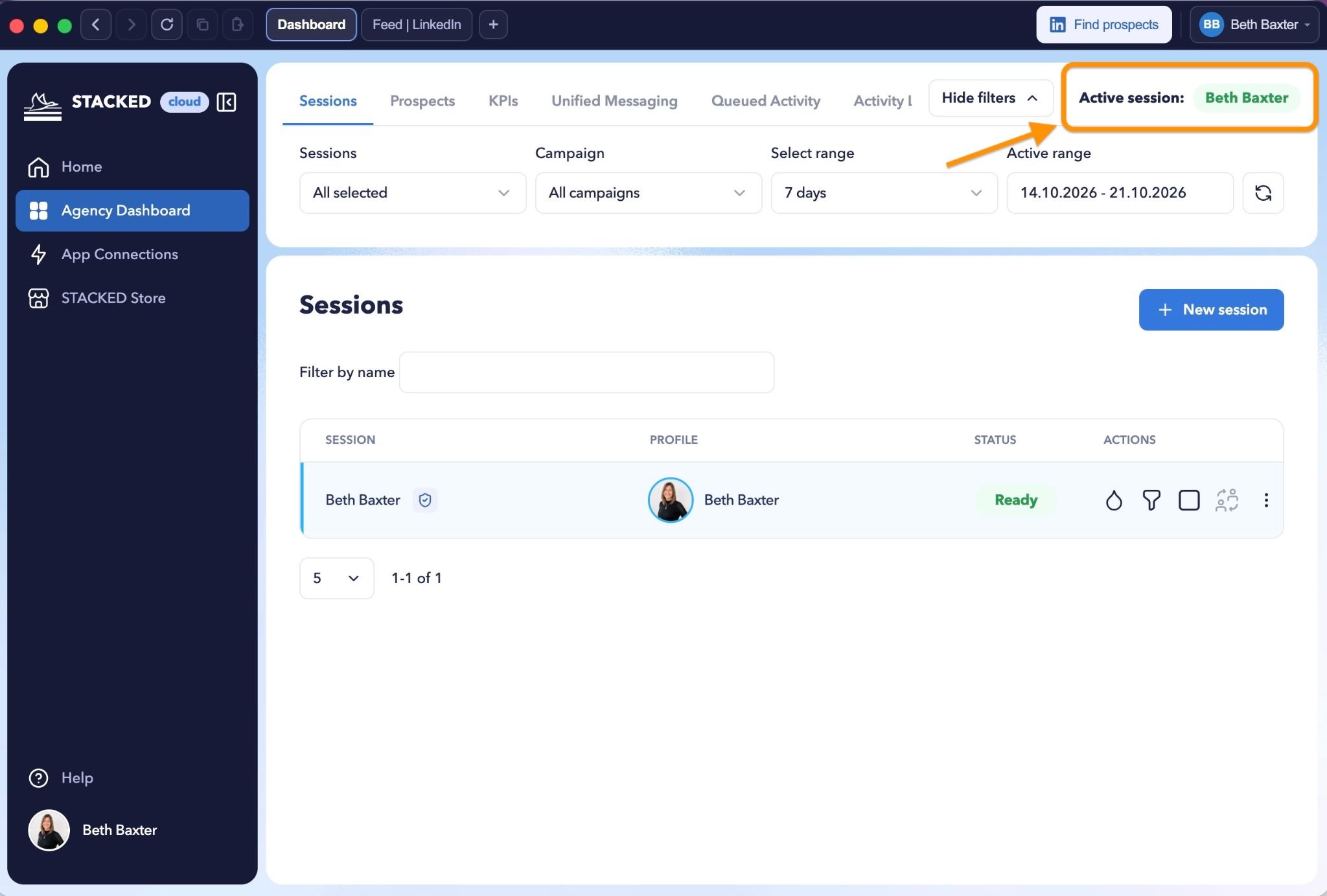
To work directly inside a client's session, select the account you want to access and switch to it. STACKED identifies the active session, so you can confirm which LinkedIn account you're working with.

You can switch back to your own account or move to another client whenever needed.
You can see which Session you’ve in at the top right of the Agency Dashboard.
The key benefit is that you don't need to keep every client account open in a separate browser window. You can work through your accounts in one place while the other cloud sessions continue running.
For example, you might switch into a client's account to make a change, review their LinkedIn activity, or manage a task that requires direct access to their session. When you're finished, switch back to your own account and continue with the next client.
Create Drip Campaigns
STACKED lets you manage campaigns for individual client accounts without constantly switching between sessions.
Next to the Profile’s name, under Actions, click on Drip Campaigns to create a campaign for that account. Give it a name, configure the campaign, and save it. Watch our tutorial on creating drip campaigns and enrolling prospects for more detail.

You can then add prospects to the campaign.
Enroll prospects
If you're working inside a client's active LinkedIn session, use the Find Prospects button to create a list in LinkedIn, Sales Navigator or Recruiter.

From your search results you can enroll prospects individually or select multiple people for bulk enrollment.
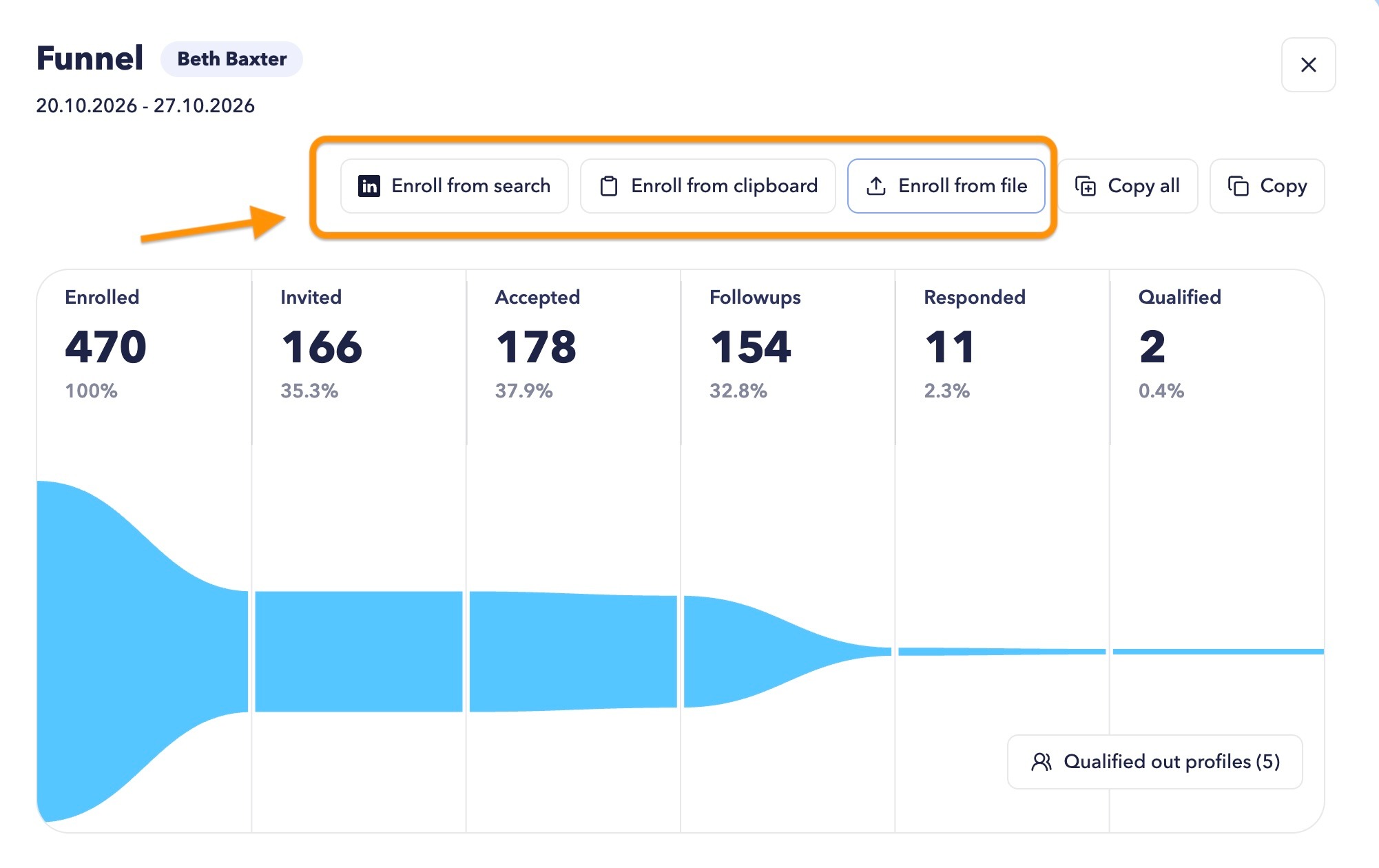
You can also enroll prospects by uploading directly to the funnel. Click the funnel icon against the profile you want to enroll prospects for.

Then use the Enroll buttons at the top.
Note: You don’t have to switch into a session to create campaigns or enroll prospects. This is particularly useful when a client sends you a new prospect list. Rather than opening every account and repeating the same process, you can work through the relevant campaign and enroll the contacts from the dashboard.
4. Monitor Performance Across Your Client Portfolio
As your agency grows, keeping track of individual campaigns becomes more difficult. STACKED's KPI dashboard helps you review outreach performance across multiple accounts in one place.
At the top of your screen you’ll see some tabs. Open the KPIs tab to see activity for the accounts and date ranges you've selected. Just use the filters below the tabs at the top to filter your data.
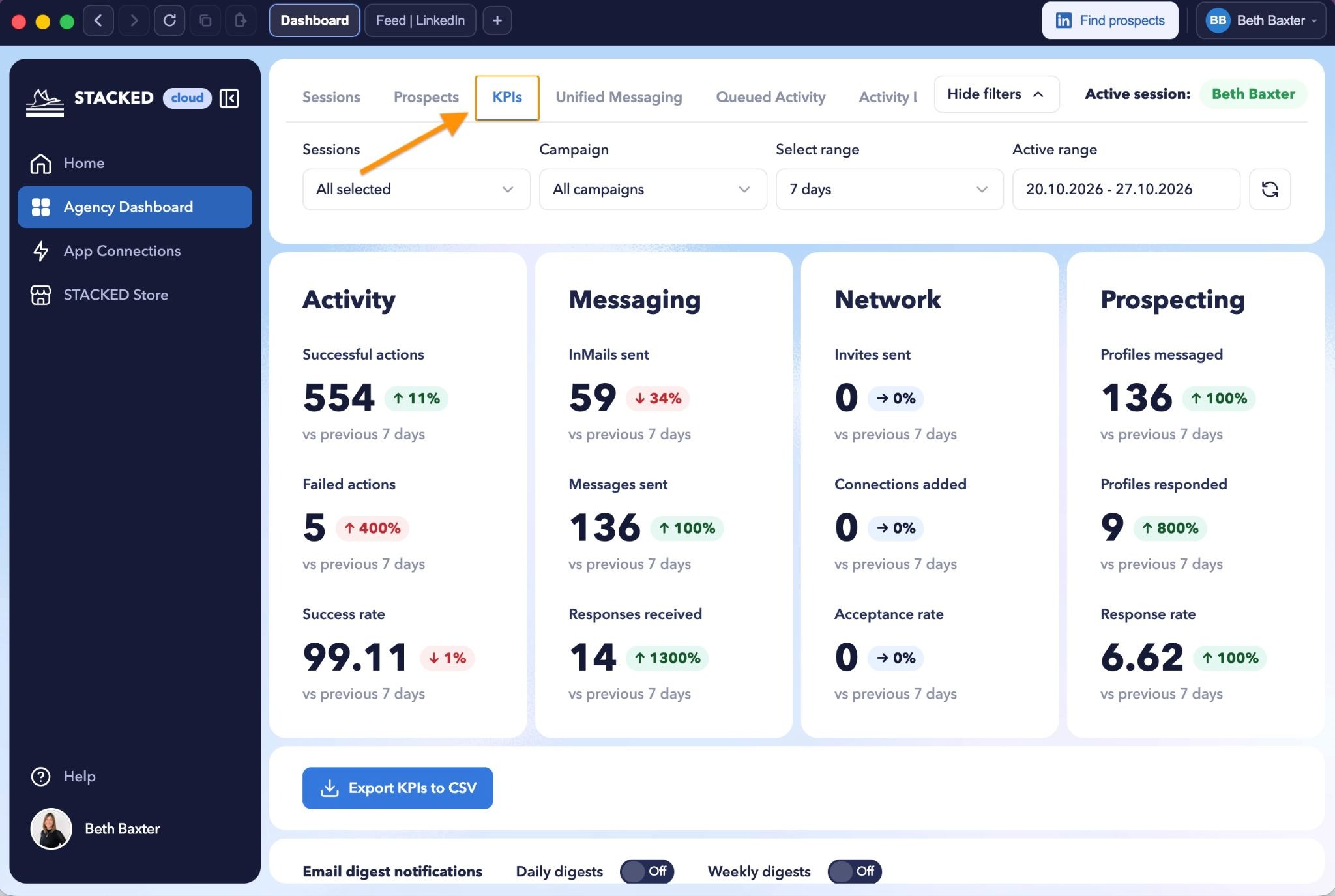
The dashboard can show metrics such as:
- Successful and failed actions
- Invitations sent
- Connections added
- Messages sent
- Responses received
- Prospects who have responded
You can look at recent activity, such as the last 24 hours or seven days, review a longer period, or set a custom date range.
When you need to share the data, you can export it as a CSV file by clicking the Export data to CSV button.
You can also enable email digest notifications to receive recurring daily or weekly reports at the email address associated with the main administrator account.
This makes it easier to review performance, spot issues, and prepare client updates without manually collecting figures from every account.
5. Manage Client Conversations in One Unified Inbox
One of the most useful features for agencies is Unified Messaging, which brings conversations from the accounts you manage into one inbox and lets you reply on behalf of your clients.
Instead of opening each LinkedIn account to check for replies, you can review messages across your client portfolio from the STACKED dashboard.
To get started:
- Open Unified Messaging.
- Choose the accounts and date range you want to review.
- Filter conversations by campaign stage, such as responded or qualified.
- Select a conversation to view its history.
- Reply or take the appropriate action for that prospect.
You can respond on behalf of the relevant client directly from the dashboard. You can also qualify a prospect, continue their campaign, switch them to another campaign, or unenroll them.
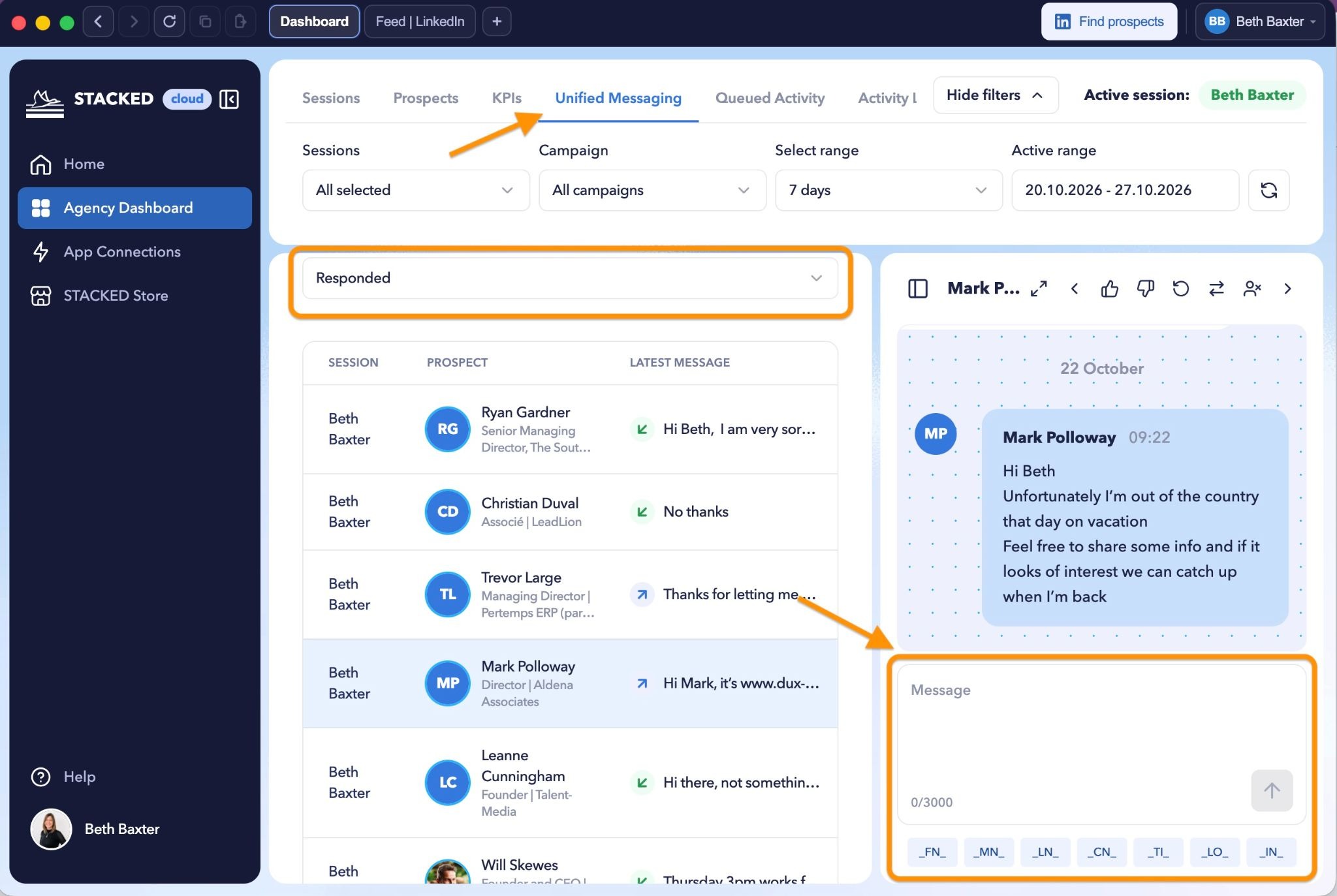
What do the campaign actions mean?
- Qualify in: Mark a prospect as qualified and remove them from the active campaign flow.
- Qualify out: Mark a prospect as not qualified.
- Continue campaign: Allow the prospect to continue through the campaign after a response.
- Switch campaign: Move the prospect to another campaign, such as a nurture sequence.
- Unenroll: Remove the prospect from the campaign.
For example, if a prospect says they're interested but not ready to move forward, you could move them into a nurture campaign. If they express interest and are ready for a conversation, you can qualify them and handle the next step according to your client's process.
These controls help your team manage replies consistently across multiple accounts.
6. Use the Prospects Tab to Track Campaign Progress
The Prospects tab gives you a more detailed view of the people moving through your clients' campaigns.
You can see at a glance which campaign a prospect is enrolled in, how far they've progressed through its steps, and which actions are scheduled next.
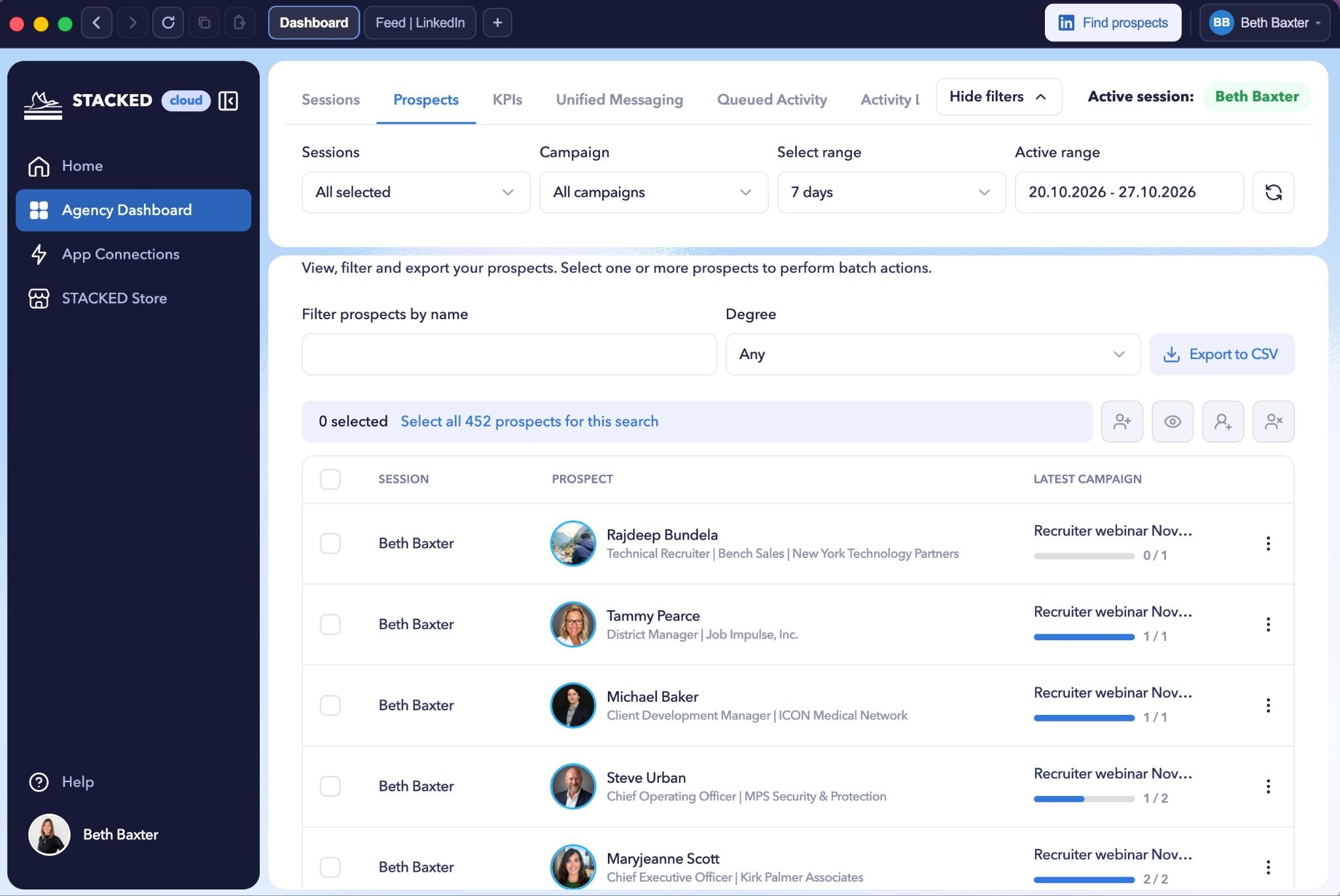
Use the available filters to narrow the list and find the prospects you need to manage.
The Prospects tab also supports bulk actions. Depending on your needs, you can select multiple prospects to enroll, unenroll, or trigger relevant actions. You can also export prospect data to CSV.
The export can include publicly visible profile information and conversation history, making it useful for reporting, analysis, or transferring relevant information into other systems.
If a prospect has responded, you can open their conversation and take action directly from this area, too.
When should you use Prospects instead of Unified Messaging?
Use Unified Messaging when your priority is managing conversations and replies. Use Prospects when you want to understand campaign progress, perform bulk actions, or collect information about a group of contacts.
7. Configure Settings for Each Client
Each LinkedIn account may need different settings, so it's important to check which session is active before making changes.
To adjust a client's configuration:
- Switch into the relevant client session.
- Open the settings menu from the lower-left corner.
- Review the available configuration options, including throttling settings, planners, browser settings, and other options.
- Make the necessary changes for that client.
- Confirm you're still working in the correct session before moving on.
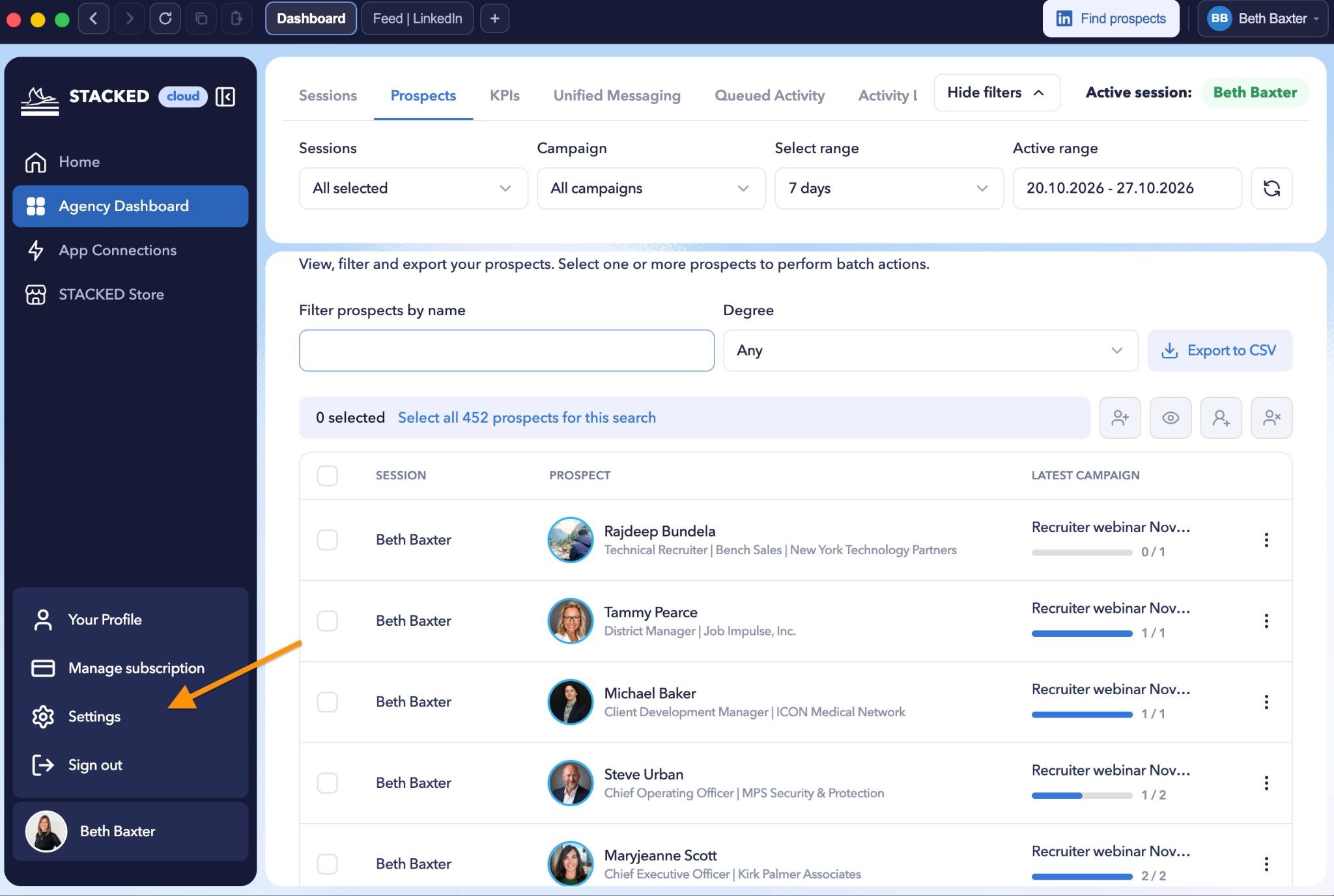
STACKED allows settings to be configured separately for each account. This means you can manage individual client requirements without applying the same configuration to everyone.
Note: The default Dux-Soup settings are the recommended starting point for most established profiles. Review the settings carefully before making adjustments, and prioritize responsible automation over simply increasing activity.
8. Connect STACKED to Your Agency's Existing Tools
STACKED can also connect with tools your agency already uses, helping you manage outreach without constantly moving between applications.
There are several integration options.
CRM integrations
If a client uses a CRM such as HubSpot, you can configure the integration for their specific account.
First, switch into the correct client session. Then open App Connections, choose the relevant integration, and follow the prompts to connect the client's account.
This distinction matters when different clients use different CRMs. For example, one client might use HubSpot while another uses Salesforce or Pipedrive. Connect each integration to the appropriate account to keep information flowing to the right place.
Slack and Microsoft Teams
STACKED can also connect with Slack and Microsoft Teams to notify your team when new responses arrive.
Depending on the integration and available actions, team members can review conversations, reply, qualify prospects, continue campaigns, or manage enrollment without having to work entirely inside STACKED.
This can be particularly useful for agencies that collaborate with clients on lead responses. You can set up a dedicated channel where your team and, if appropriate, your client can review incoming conversations and coordinate follow-up.
AI messaging integrations
STACKED includes AI integrations with services such as ChatGPT, Claude, and Gemini. These can be configured to help personalize campaign messages, including connection requests, direct messages, and InMails, using the relevant API credentials.
STACKED’s Model Context Protocol (MCP) connection allows compatible AI assistants to access supported STACKED data and capabilities, such as reviewing KPIs across managed accounts, summarizing performance, checking account status, and helping create campaigns.
These are two different types of integration: the in-app AI connections support messaging personalization, while MCP enables a compatible AI assistant to interact with STACKED through a separate setup process.
9. Build a Repeatable Workflow for Your Agency
Once your accounts and integrations are set up, the next step is to establish a consistent routine.
A simple agency workflow could look like this:
- Check the dashboard. Review recent messages and identify any accounts that need attention.
- Review campaign activity. Check the status of each client's campaigns and identify any issues.
- Manage new prospects. Add new lists, enroll relevant contacts, and check campaign progress.
- Respond to conversations. Use Unified Messaging or your connected collaboration tools to handle replies.
- Review performance. Monitor KPIs and export reports when needed.
- Refine your approach. Use campaign results and prospect responses to identify opportunities for improvement.
Because cloud sessions can continue running while you work elsewhere, you don't need to keep every client account open at once. You can move between accounts as needed while keeping an overview of the wider portfolio.
As your client base changes, you can also adjust your agency seats to reflect the accounts you're managing.
Get Started With STACKED for Agencies
STACKED gives agencies a central place to manage LinkedIn outreach across multiple clients. From connecting client sessions and managing campaigns to tracking KPIs, responding to prospects, and connecting existing tools, it helps bring more of your workflow together.
Start by adding your first client session, confirming the connection, and exploring the agency dashboard. Once you're comfortable with the basics, set up your campaigns, review the reporting tools, and connect the integrations that fit your agency's workflow.
Ready to try STACKED? Start your free two-week trial.













.png)

