STACKED: Revisiting Data for a Basic Linkedin Account
Updated October 2026
Boolean/ Scan / Download / Tidy / Revisit / Repeat!!!
LinkedIn is one of the world’s largest professional databases, with more than 1 billion people on the platform. For B2B businesses, that represents an enormous opportunity. Chances are, the companies you want to sell to, and the people who make the buying decisions, are already on LinkedIn.
The challenge isn’t whether your prospects are there. It’s knowing how to find the right people, identify the data that matters, and turn that information into meaningful opportunities.
In this blog, we’ll walk you through exactly how to do that, from finding and refining your target data to keeping it clean and actionable, before showing you how to put it to work with the STACKED Revisit tool.
Get STACKED for free
By the end, you’ll have a clear process for turning LinkedIn’s huge pool of potential prospects into a more focused, targeted B2B lead generation strategy.
Step 1: it’s all about the Boolean!!
With more than 1 billion people on LinkedIn, you need to be smart about how you narrow down your search to find the people who are actually relevant to your business.
To show you how to do this, we’ll use the example of a fashion startup looking to connect with fashion designers. We’ll walk through how to use LinkedIn’s Boolean search function to quickly narrow down your results and find the right prospects.
1. Start your search
In the top-left corner of LinkedIn, click Search, then select People.

(2) Then click on ‘all filters’

You will see the following screen.
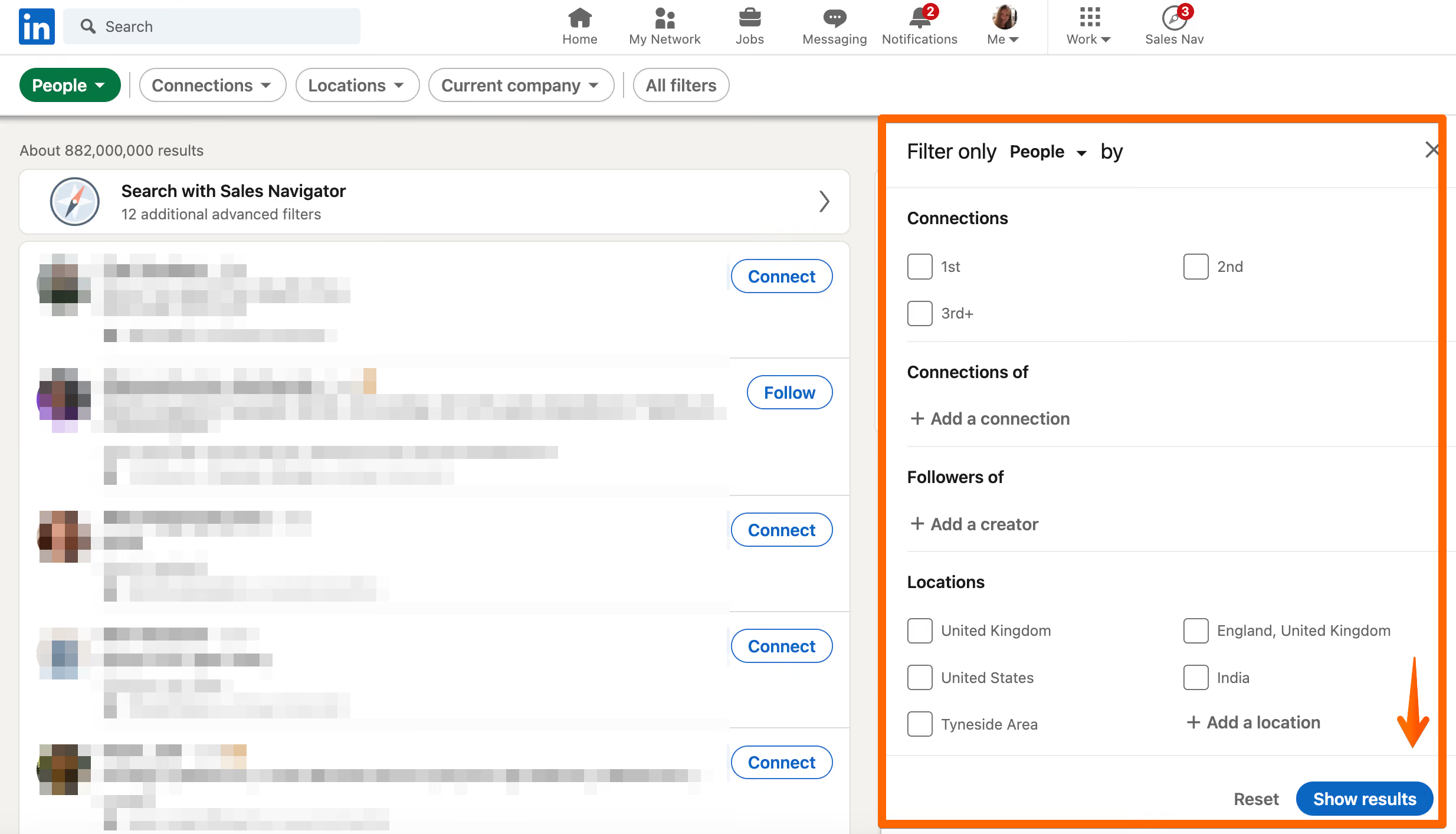
This is where the Boolean magic happens!
First, start by selecting the basic criteria you already know about your ideal prospects. For this example, we'll select:
- Location: United Kingdom and United States
- Industry: Apparel & Fashion
- Profile language: English
- Connections: 2nd
We'll choose 2nd-degree connections because the goal is to connect with new people. Having mutual connections can also make your outreach feel more familiar and increase the likelihood of someone accepting your connection request.
Once you have these criteria set, don’t click ‘Apply’ just yet. There’s one more important step: adding the job titles.
This is where the Boolean search comes in.
For this example, we want to connect with people in roles such as Founder, Co-Founder and Creative Director. In the Title section, we'll use the following Boolean search: "Founder" OR "Co Founder" OR "Creative Director"
You can copy this format and simply replace the job titles with the search terms that are relevant to your own target audience.
Once you’ve entered your Boolean search and pressed Enter, LinkedIn will return a much more targeted list of prospects. We just narrowed the search down from 450 million to 323 people who would be my target market.
All good so far? Ok, stay with us as there is an extra bonus!!!! If you look through your data, you will see that some job titles may not be relevant. For example, even though we searched for Founder, Co Founder or Creative Director, this profile has shown in the search results:
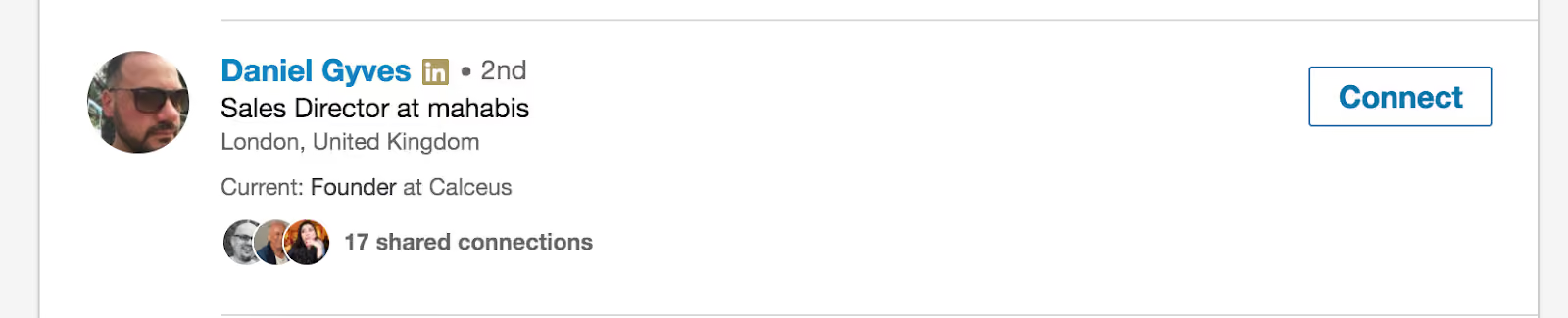
No disrespect to Daniel , we're sure you are an awesome guy, just for this search criteria we want to remove anyone with the title ‘Sales Director’ as they are not relevant. This is where we intro the ……. Negative Boolean Search.
Go back to ‘All Filters’ and in the title section we currently see:
“Founder” OR “Co Founder” OR “Creative Director”.
Now add the roles you do not want to see by adding NOT and then the role, in this instance ‘Sales Director’ so your search looks like this:
“Founder” OR “Co Founder” OR “Creative Director” NOT ‘Sales Director’
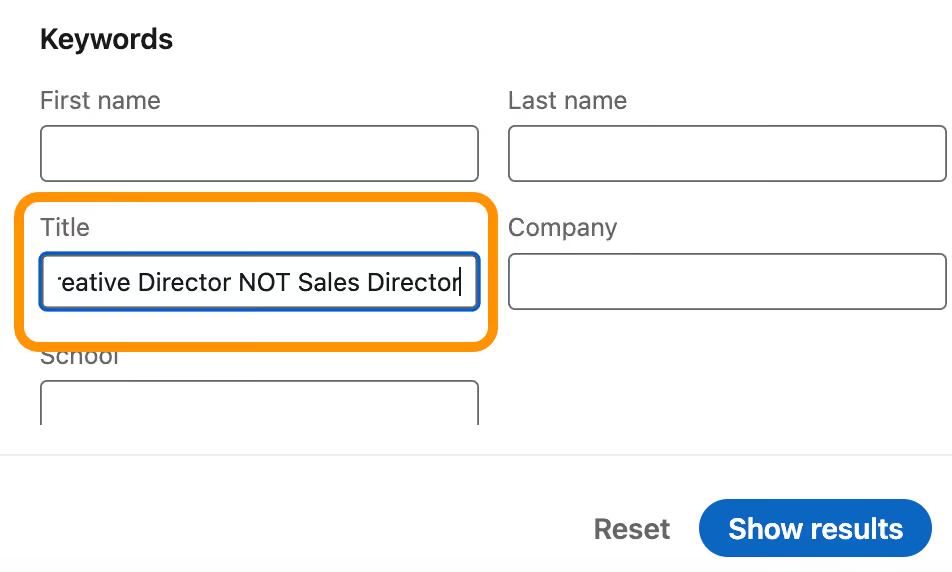
Then click apply and check your results. You should see that the number of results has now reduced. You can do this a number of times until you feel that the search criteria is ideal.
Step 2: Scan Scan and away!
Now that you’ve built a highly targeted list of prospects, there are two ways you can use STACKED.
The first option is to enroll your prospects into a campaign, where STACKED can visit their profiles and send connection requests.
However, if you’re not ready to start outreach yet, there’s another option. In this example, we want to review and cleanse the data before enrolling anyone into a campaign.
That’s where Scan Profiles comes in.

Select Scan Profiles and STACKED will work through the profiles in your search results, collecting the contact data you need without notifying the prospects that you’ve viewed their profiles. Sneaky, right?
Important: You’ll need to have Expert Mode enabled in STACKED for the Scan Profiles button to appear. You can turn this on by going to the User tab in Settings.
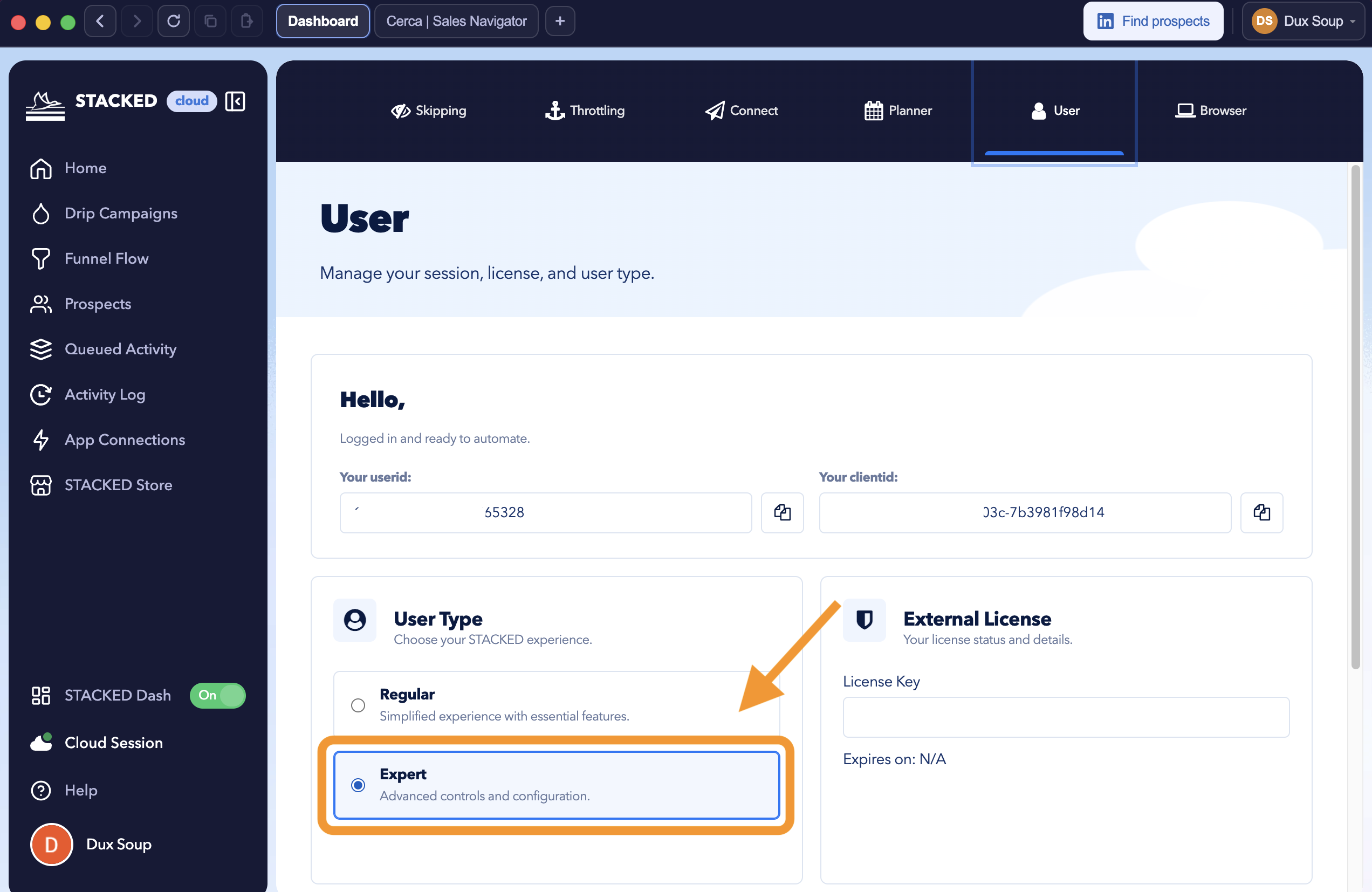
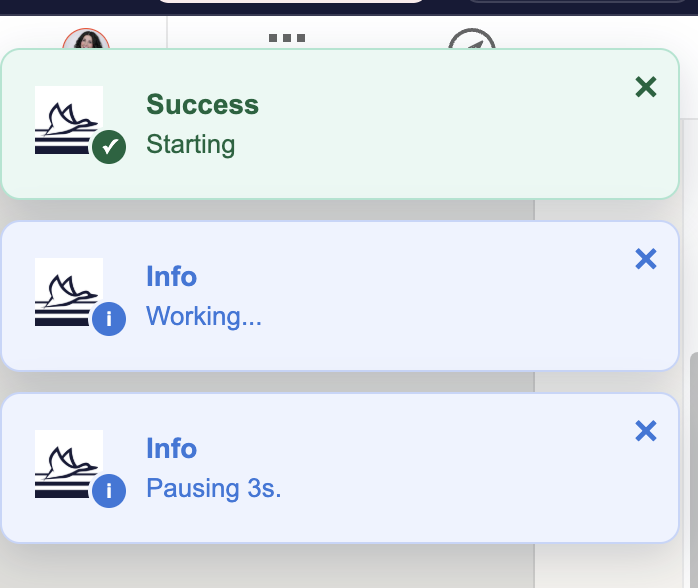
STACKED can scan searches of up to 100 pages. However, there is a maximum of 1,000 profiles per search, regardless of how many connections appear in your results. So, if your search contains more than 1,000 profiles, only the first 1,000 will be scanned. You can see STACKED working away as shown below.
Once the scan is complete, you’ll see the number of Profiles Recorded increase. In this example, it has increased to 614 Profiles Recorded, which matches the number of profiles returned by our LinkedIn search.
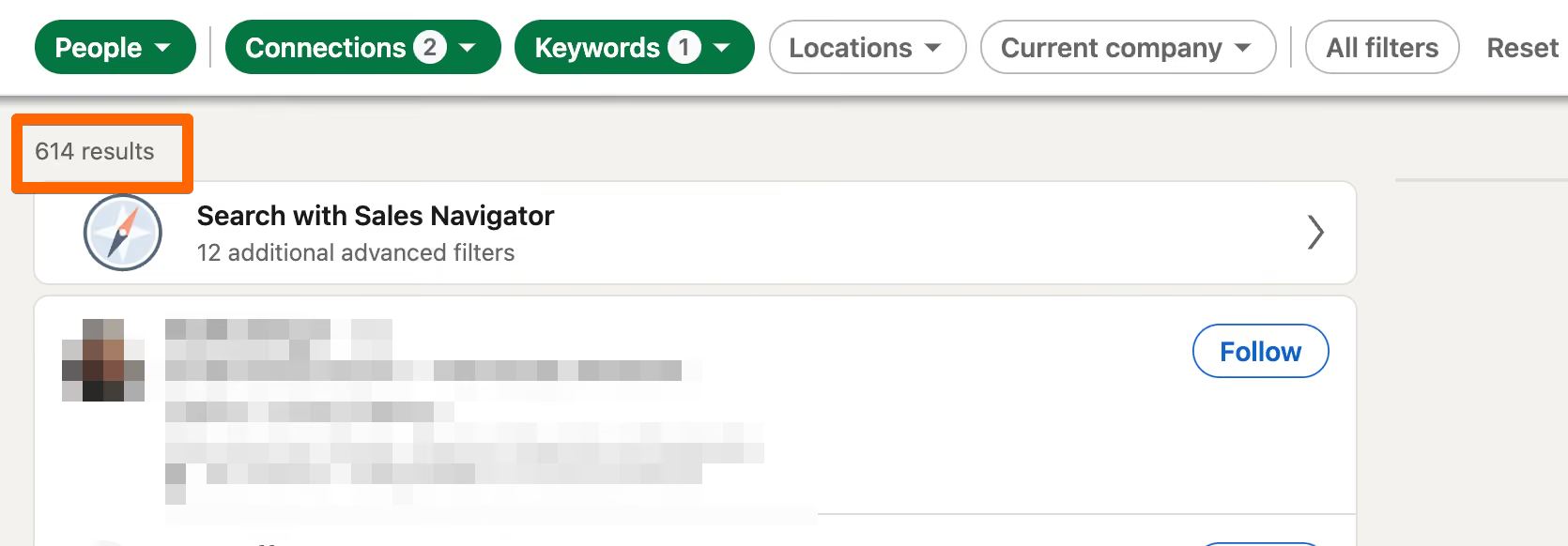
We now have 614 Profiles scanned; the next step is downloading this data.
Step 3: Download!
Before you download your data, there’s one quick tip. It’s worth repeating Steps 1 and 2 with different search criteria to build a larger and more varied dataset.
For example, you could add new industries, locations or job titles, or include 3rd-degree connections in your search. Each time you change your criteria, you’ll generate a new set of prospects for STACKED to scan.
A good target could be around 2,500 profiles. Keep repeating Steps 1 and 2 with different search criteria until you have built a large, relevant dataset that you’re happy with.
You can stop STACKED from scanning at any time by clicking Stop & Download. This will stop the scan and allow you to download the profiles collected so far.
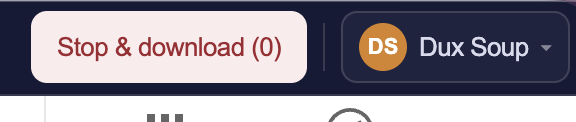
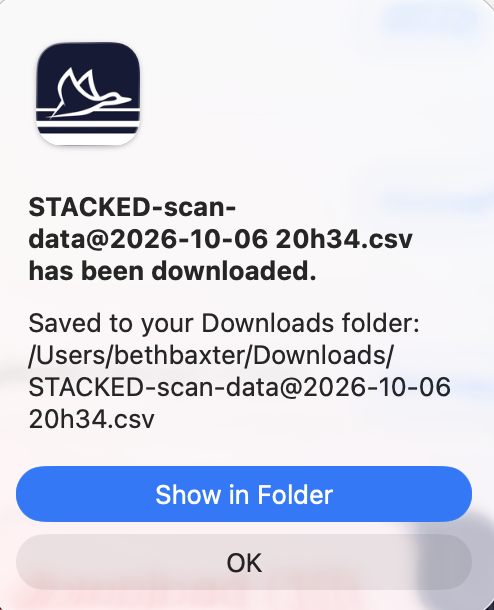
Once the scanning process has finished, STACKED will automatically save your data download and let you know where the file has been saved. This makes it easy to find and access your data whenever you’re ready to start working through it.
You’ll now have a CSV file containing a range of useful data points from the profiles you’ve scanned, including:
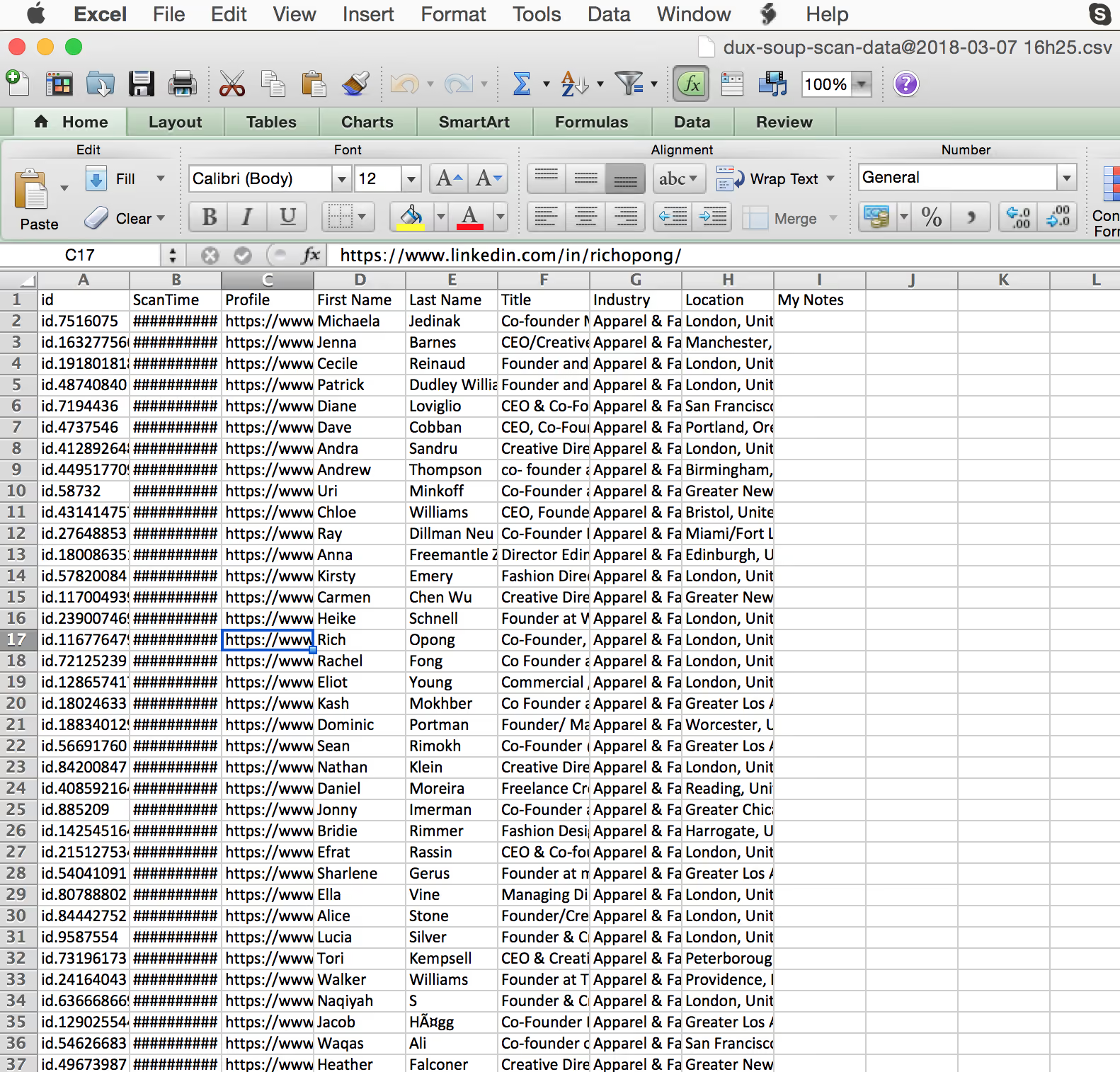
A point to note here is that you have not been visiting profiles and so you won’t have people’s email addresses, just their names and profiles, but that is all you need, we promise!
Step 4: Tidy
“The difference between something good and something great is attention to detail.”
Your LinkedIn profile and network are valuable assets, so it’s important to make sure the people you connect with remain relevant to your business and target audience. This not only helps you maintain a high-quality network, but also increases the chances of people accepting your connection requests when you share similar industries, interests or professional backgrounds.
Once the data is downloaded, we recommend reviewing it carefully and check that nobody has slipped through the net.
The easiest way to do this is to scan through the industries and job titles in your data and look for anyone who seems out of place. If you’re unsure about a particular person, click through to their LinkedIn profile and check whether they’re a relevant prospect.
If they are, leave them in. If they’re not, simply remove them from your spreadsheet.
This step is often overlooked, but we can’t stress enough how important it is. Taking the time to focus on the right people and keep your data clean can make a huge difference to the quality of your outreach in the long run.
Step 5: Revisit
Now for the moment you’ve all been waiting for: REVISIT THAT DATA!
If you’ve spent hours, days or even weeks building your database, tidying it up and narrowing it down to exactly the people you want to connect with, now is the time to put that data to work.
To clarify, Revisiting Data means enrolling the list of LinkedIn profiles to a STACKED campaign that you want to visit and/or connect with. Drip campaigns can be a simple visit only campaign, or a 12-step multi-action sequence that includes direct outreach. Watch this video on the types of campaigns you can create with STACKED.
We recommend following the process below.
1. Decide how many people you want to connect with
First, decide how many people you want to connect with each day. In my example, I’m going to target 150 people per day.
2. Create a new tab in your CSV
Open the CSV file containing your downloaded data and create a new tab called ‘Revisited’. You can call this whatever you like, but this is the naming convention I use to keep things organized.

3. Add a ‘Revisited’ column
Go back to the first tab of your data and add a new column called ‘Revisited’, as shown below:

4. Move your daily contacts to the Revisited tab
As I want to revisit 150 people per day, I’ll copy 150 people from the first tab into the Revisited tab.
5. Mark your contacts as pending
On the first tab, update the status of all 150 contacts to Pending:
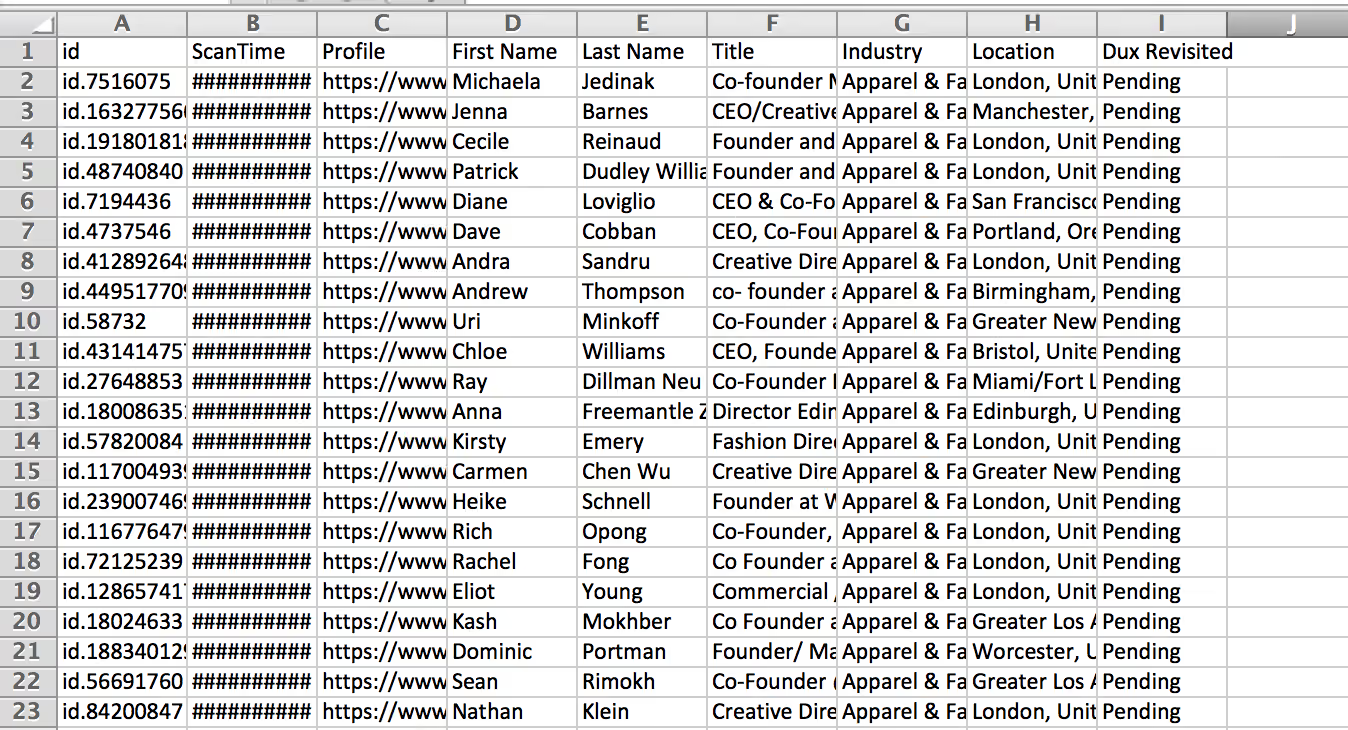
This allows you to easily keep track of who you've already revisited and which contacts are still new and ready to revisit in the future.
6. Save your Revisited list as a CSV
On the second tab you created, called ‘STACKED Revisited’, you should now have 150 people ready to connect with, or however many people you’ve chosen to target each day.
Click File > Save As and select CSV to save your list.
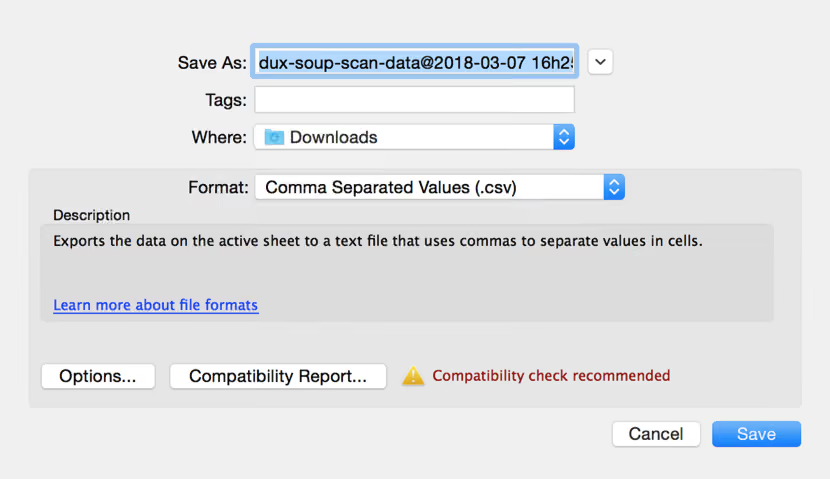
You now have the file ready to upload to a STACKED campaign to revisit!
7. Enroll your data into a Revisit campaign
In the Funnel Flow section, select the campaign you want to enroll your data from at the top.
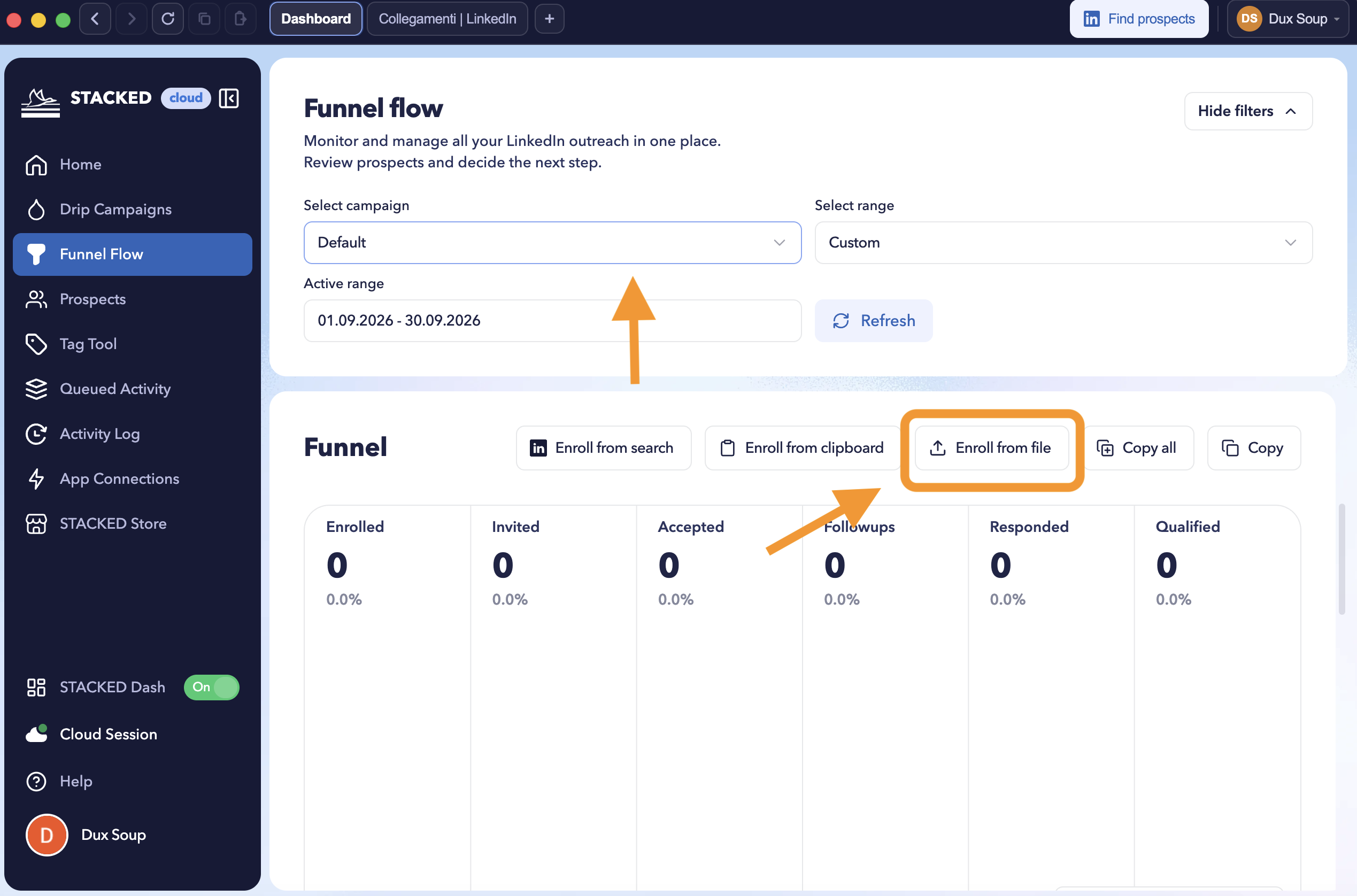
Click ‘Enroll from File’ and select the file you’ve prepared.
STACKED will then enroll your contacts into your chosen campaign and automate your outreach, including visiting profiles, sending connection requests, messaging contacts, liking posts, and more.
Your outreach has officially begun! You can monitor progress, and campaign results directly from your STACKED dashboard.
You’re now an official STACKED Revisiter and part of a unique group of users! With these new skills, you can make sure that the people you connect with are highly targeted, relevant, and a great fit for your business.
We’d love to hear how you use the Scan and Revisit features and what results you achieve. As always, if you need any help, get in touch at info@dux-soup.com or reach out to us via the live chat on our website.













.png)

