Dux-Soup Pipedrive Integration
[Updated July 2024]
If you want to turbocharge your lead generation process then Dux-Soup Turbo and Cloud offer advanced features to help you scale up via automation.
One of the many features that Dux-Soup Turbo and Cloud come with is a really simple-to-install Pipedrive LinkedIn integration. This allows you to run LinkedIn campaigns from Pipedrive, update your Piperrive database with data from LinkedIn and centralize prospect information, keeping records up-to-date so the full history of interactions can be seen by everyone.
Pipedrive, if you are unfamiliar with the tool, is a cloud-based CRM that helps in managing and organizing your sales leads. Using a system that can keep you organised with your sales outreach is critical.
If you want to automate your lead generation and build partnerships while you’re working on other things - then keep reading and see how Dux-Soup Turbo’s native LinkedIn Pipedrive integration can help you turbocharge your lead generation.
To begin with, make sure you have the following:
- Dux-Soup Turbo or Cloud Edition. You can compare our plans and purchase the best one for you with ease. Cloud offer always-on automation, without the need for your browser to be active
- Pipedrive account.
Let's start then!
Step 1 - Installing the Pipedrive Dux-Soup Connector
- First, make sure you have Dux-Soup Turbo (you'll have a yellow Dux like below if you do) or Cloud (raspberry Dux) and that you are logged on to an administrator account within your Pipedrive environment.
- Next you need to go to the Dux-Dash. To do this, click on your Dux-Soup icon, and you’ll see the Dux-Dash button in the bottom right hand corner of the drop down box.
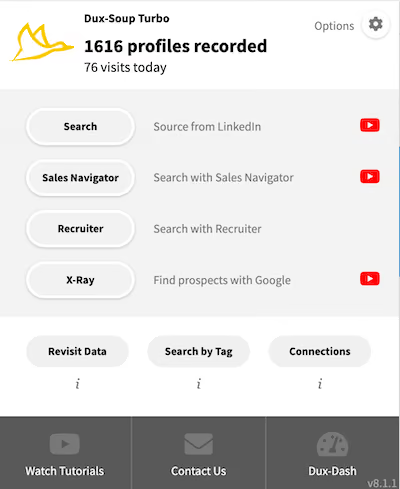
- Clicking on the Dux-Dash will open a new window and take you to your Dux-Dash. Select 'CRM Connections' from the left-hand menu, then 'New Connection' and choose Pipedrive from the integrations list.

- This will take you to the Pipedrive marketplace.
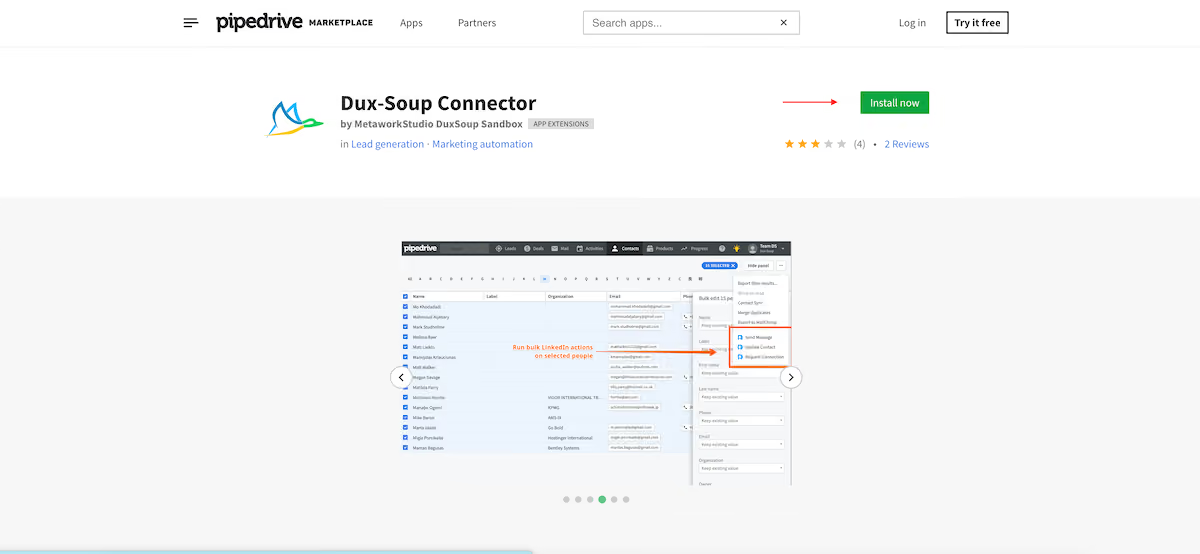
- From here Select 'Install Now'. Confirm access permissions – ensuring you have an administrator account.
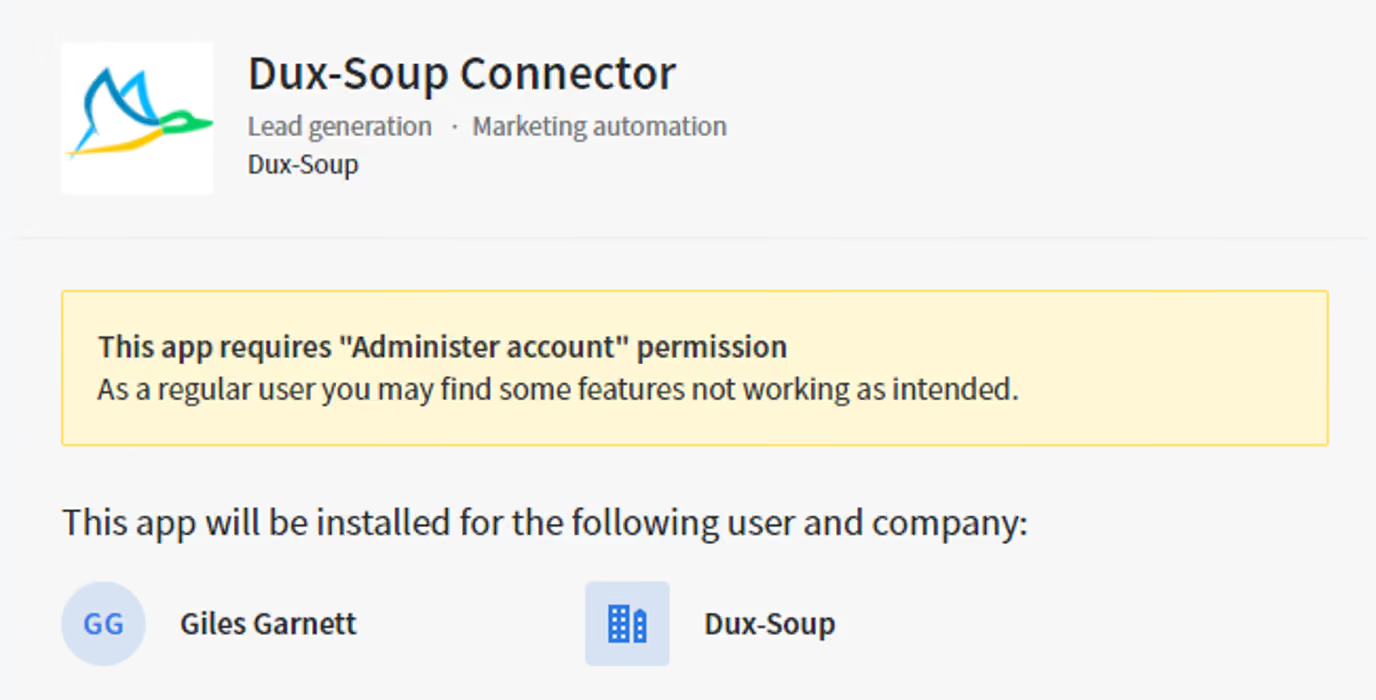
- After pressing 'allow' and 'install' you will be taken back to Dux-Dash CRM Connections, where you can see that your Dux-Soup Connector has been successfully installed!
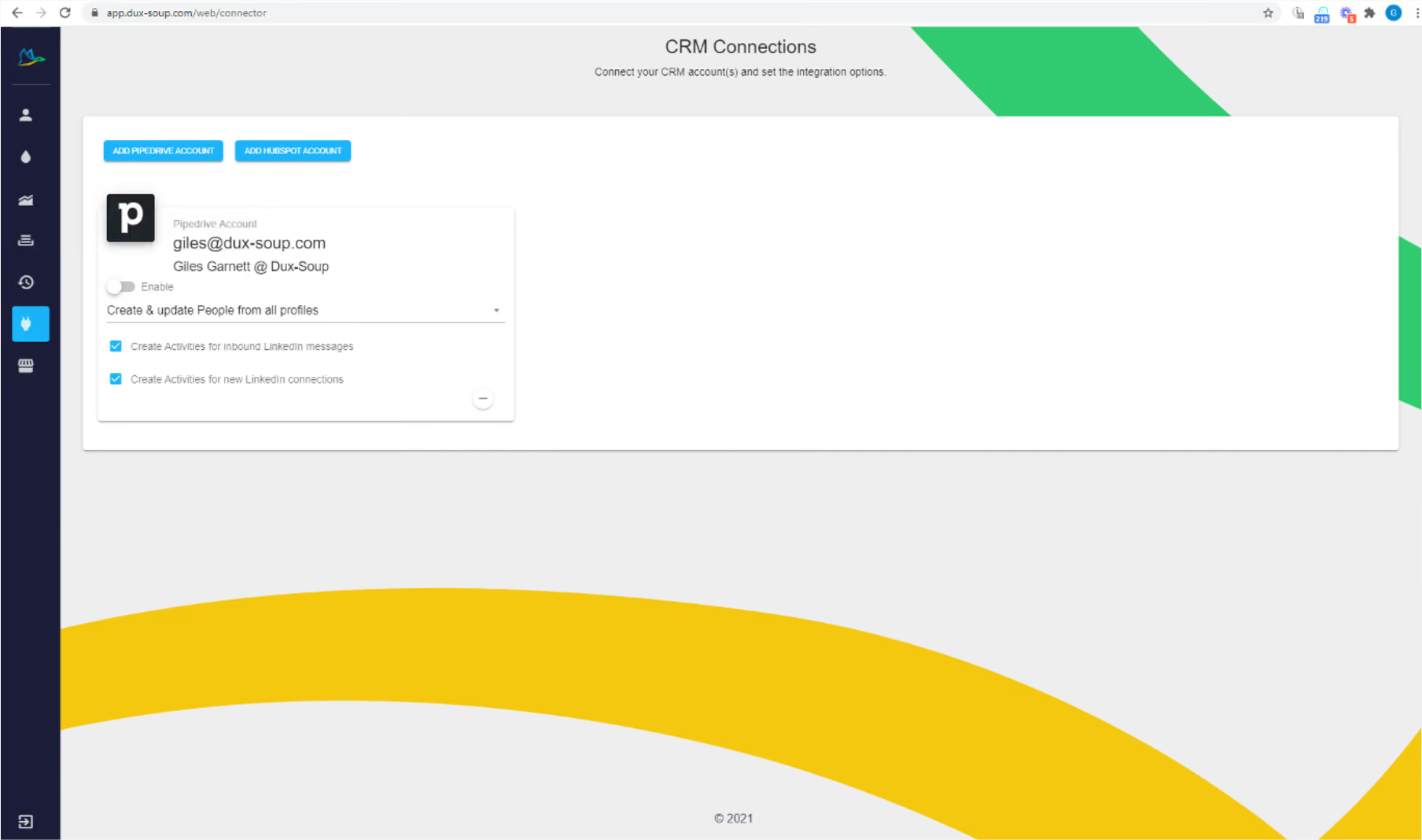
- If you want to remove the Dux-Soup Connector, go back to the Pipedrive Marketplace where you have the option to remove this connection.
Watch out Tutorial on installing the LinkedIn Pipedrive Dux-Soup Connector.
Step 2 - Creating and Updating Pipedrive Contacts from LinkedIn
Now that your integration between Pipedrive and LinkedIn is working, you can create and update contacts in Pipedrive from LinkedIn data using Dux-Soup.
- Enable your Pipedrive Integration within the 'CRM Connections' section of the Dux-Dash.
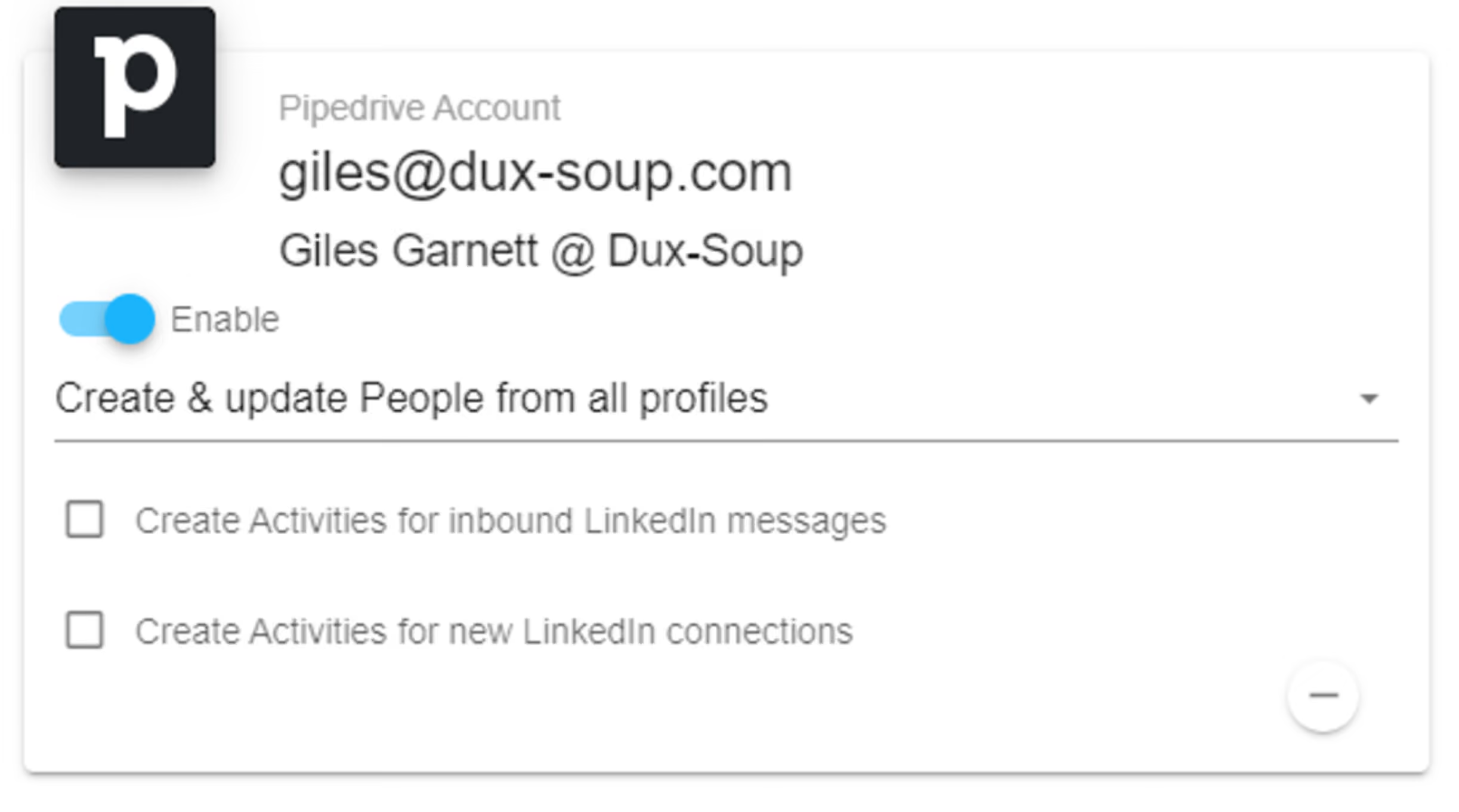
- Choose which People you want to be created within Pipedrive from the drop-down menu.
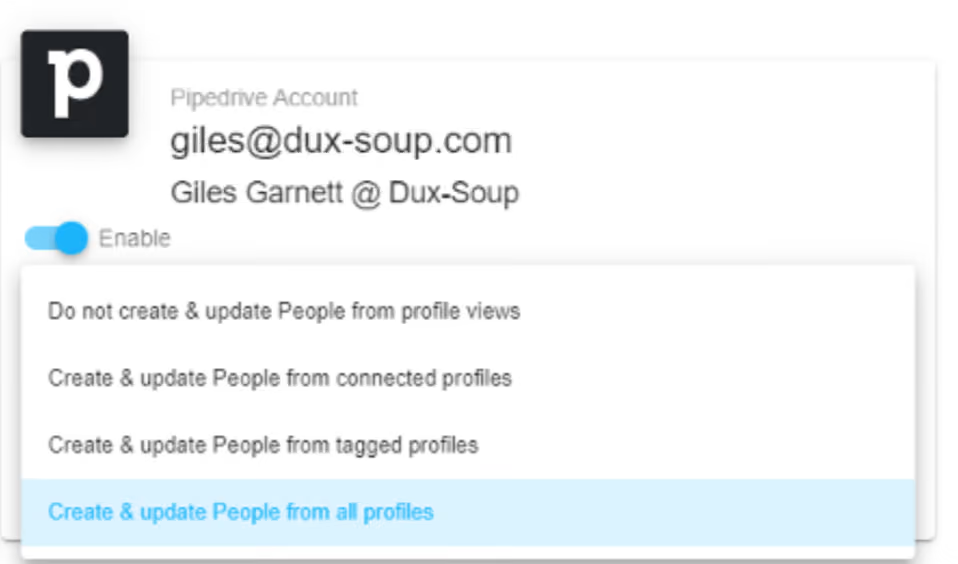
- Every time you visit a profile matching your chosen criteria in LinkedIn, a contact in your Pipedrive account will be automatically created or updated.
- You will now also be able to trigger activities from within Pipedrive against contacts – including updating their details. Go to the contact you wish to update in Pipedrive.
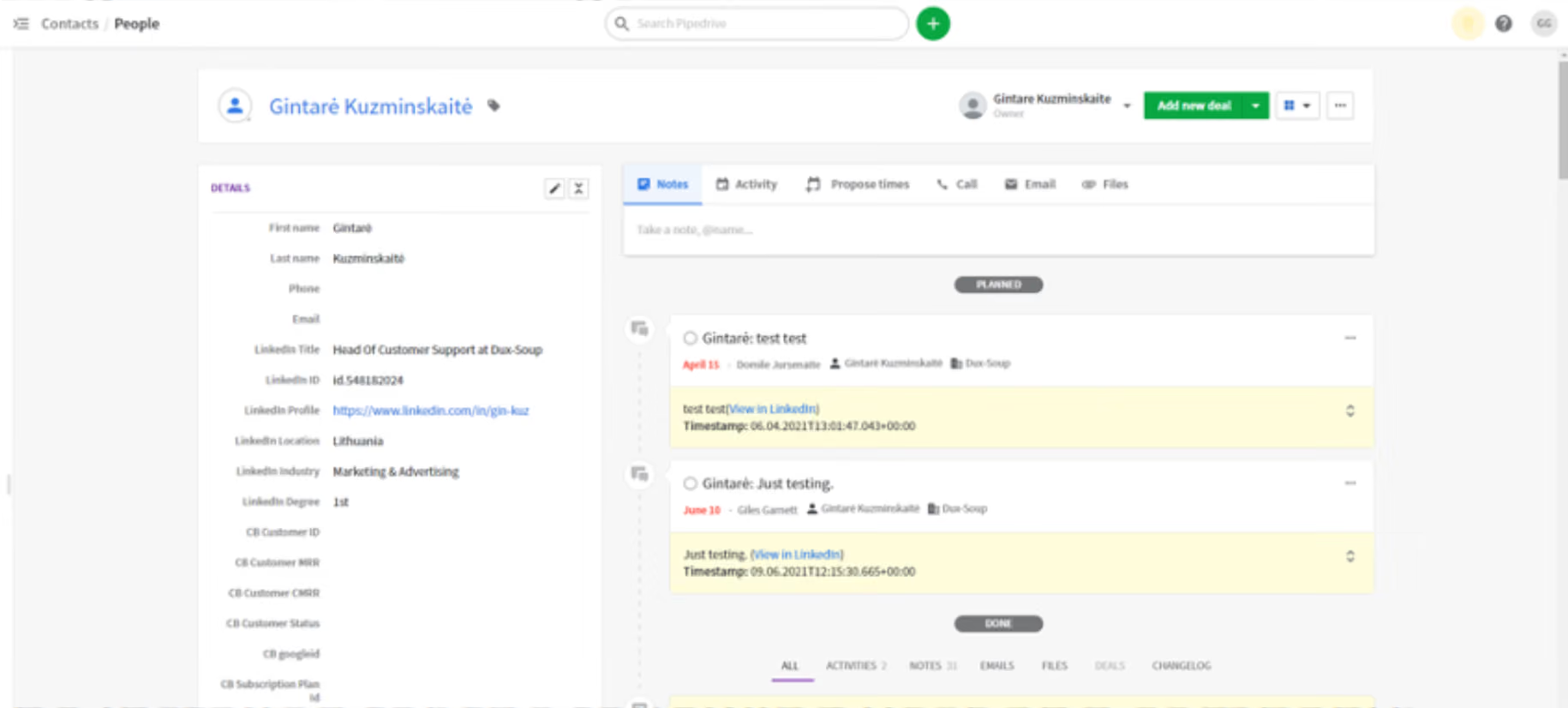
- Simply click on their LinkedIn Profile URL, to visit their profile. Dux-Soup will automatically update their details in Pipedrive.
Watch our tutorial on how to create Pipedrive contacts from LinkedIn using Dux-Soup Turbo.
Step 3 - Sending LinkedIn Connection Requests and Messages from Pipedrive
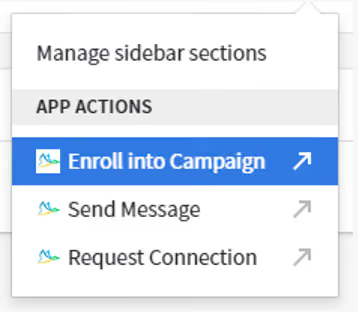
- As long as the LinkedIn URL and LinkedIn ID fields have been populated against a record in Pipedrive, you can now click on the 3 dots in the top right hand corner to automate activities to that contact.
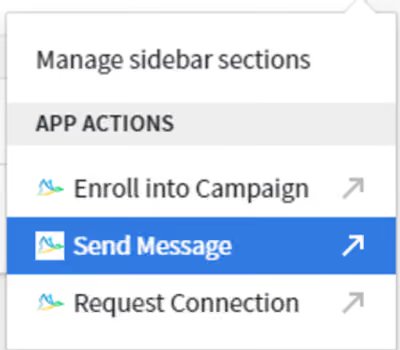
- If the person you wish to contact is an existing 1st degree connection in LinkedIn, you can now select the “Send Message” option
- This will open a window where you can type your message. Remember you can use the same text markers as you use in your usual Dux-Soup messaging activities. As this is a message to a 1st degree connection you have a limit of 3000 characters.
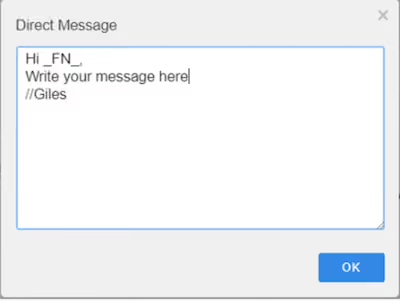
- By pressing the OK button, this will queue the action for execution. Be aware that the usual Dux-Soup ‘blacklisting’ rules will apply.
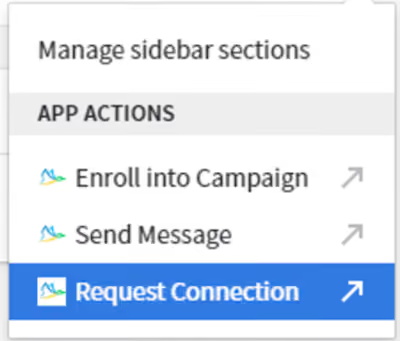
- If your Pipedrive contact is not yet a 1st degree connection you can select the 'Request Connection' option.
- This will open a window where you can type your connection request message. Remember you can use the same text markers as you use in your usual Dux-Soup messaging activities. As this is a connection request message you are limited to 300 characters.
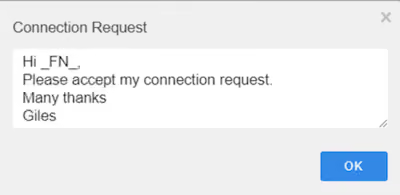
- Press the OK button to queue the action for execution.
Watch out tutorial on how to send Linkedin connection requests and messages from Pipedrive with Dux-Soup.
Step 4 - Enrolling LinkedIn profiles into Campaigns from Pipedrive
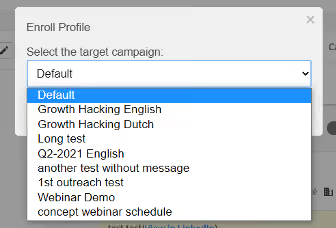
- You can also choose to enroll a profile into one of your Dux-Soup campaigns by selecting the appropriate option and then selecting the desired campaign from your drop-down list.
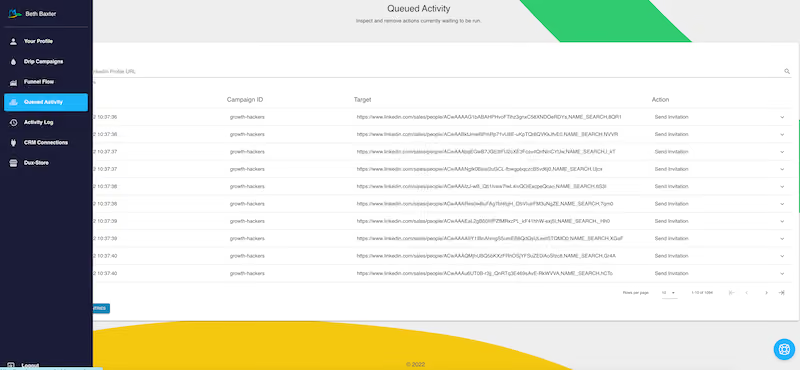
You can check for all your queued and completed activities - sent messages and connection requests within the Dux-Dash.
Step 5 - Creating Pipedrive Activities for New Connections and Inbound Messages
- Within your Pipedrive integration options in the Dux-Dash, select 'Create and update People from all profiles' and tick the 2 options below.
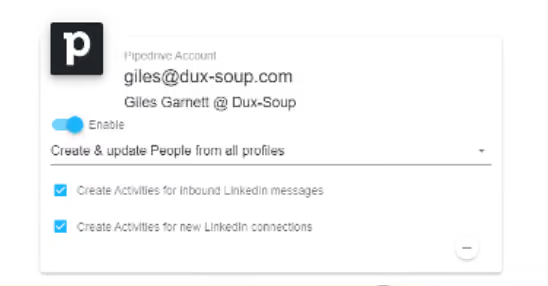
- By enabling these options, Dux-Soup will periodically check for new LinkedIn connections and Incoming LinkedIn messages in line with your Message Bridge settings (in your Dux-Soup, Connect Options)
-

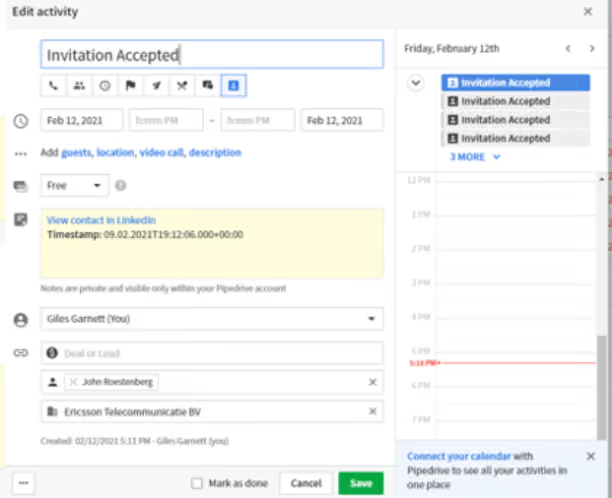
- When a new message is received in LinkedIn, or someone becomes a 1st degree connection, you will see a new activity created in Pipedrive.
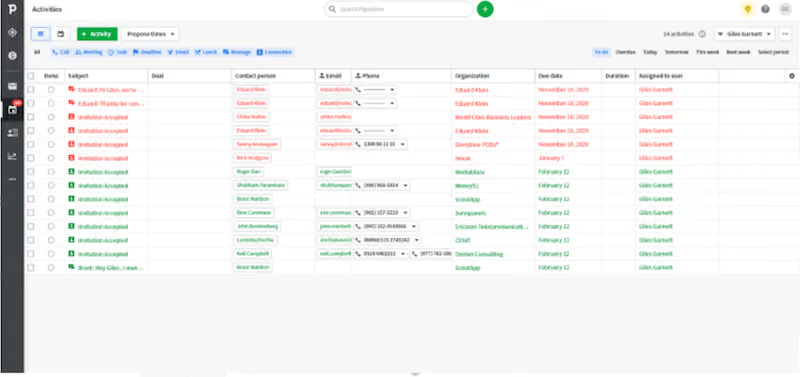
- You can then follow up as appropriate with the contact. To do this, just click on the line in Pipedrive and take the appropriate action.
And there you have a ready-made LinkedIn Pipedrive integration, using Dux-Soup Turbo or Cloud.
We hope you find this guide useful and full of enough information to try out this integration for yourself. Let us know how it goes!
If you have any questions/feedback feel free to contact Customer Support at info@dux-soup.com - we’re always happy to hear from you, and keen to help!













.png)

